Connect SmartChat with your programs.
With the SmartChat API, you connect your own programs with your WhatsApp marketing.

Your system sends a request, and the contact is created.
Your system sends simple requests to SmartChat. Every request contains your API key, so SmartChat knows it comes from you. The reply comes back immediately. All steps with examples are in the API quickstart.
curl -X POST https://api.smartchat.marketing/v1/contacts \ -H "Authorization: Bearer DEIN_API_SCHLUESSEL" \ -H "Content-Type: application/json" \ -H "Idempotency-Key: buchung-20481" \ -d '{"name": "Birgit", "phone": "+491701234567"}' # Antwort 201 { "ok": true, "created": true, "contact": { "name": "Birgit", "optin_whatsapp": "none", "source": "api" } }curl -X POST https://api.smartchat.marketing/v1/contacts/KONTAKT_ID/tags \ -H "Authorization: Bearer DEIN_API_SCHLUESSEL" \ -H "Content-Type: application/json" \ -d '{"tags": ["Transporter", "Umzug"]}' # Tag wieder entfernen curl -X DELETE https://api.smartchat.marketing/v1/contacts/KONTAKT_ID/tags/Umzug \ -H "Authorization: Bearer DEIN_API_SCHLUESSEL"# 1. Entwurf anlegen curl -X POST https://api.smartchat.marketing/v1/newsletters \ -H "Authorization: Bearer DEIN_API_SCHLUESSEL" \ -H "Content-Type: application/json" \ -d '{"subject": "Freie Transporter zum Monatsende", "content": "Zum Monatsende sind noch Transporter mit Hochdach frei, genau richtig für deinen Umzug."}' # 2. Termin setzen curl -X POST https://api.smartchat.marketing/v1/newsletters/NEWSLETTER_ID/schedule \ -H "Authorization: Bearer DEIN_API_SCHLUESSEL" \ -H "Content-Type: application/json" \ -d '{"scheduled_at": "2026-11-23T18:00:00+01:00"}'curl https://api.smartchat.marketing/v1/inbox/conversations \ -H "Authorization: Bearer DEIN_API_SCHLUESSEL" # Nachrichten eines Gesprächs curl https://api.smartchat.marketing/v1/inbox/conversations/GESPRAECH_ID/messages \ -H "Authorization: Bearer DEIN_API_SCHLUESSEL"You decide what a key may do.
Every program gets its own key with its own name. You choose whether the key may only read or also write.

Admins only
Only admins create and delete keys. Team members do not see this area.
Last used
For every key, you can see when a program last used it.
Regenerate or delete
The old key stops working immediately afterwards. Programs using it lose access until you enter the new one.
Connected in four steps.
You create the key and enter it in your system. After that, new contacts arrive automatically.
- 1
You create the key
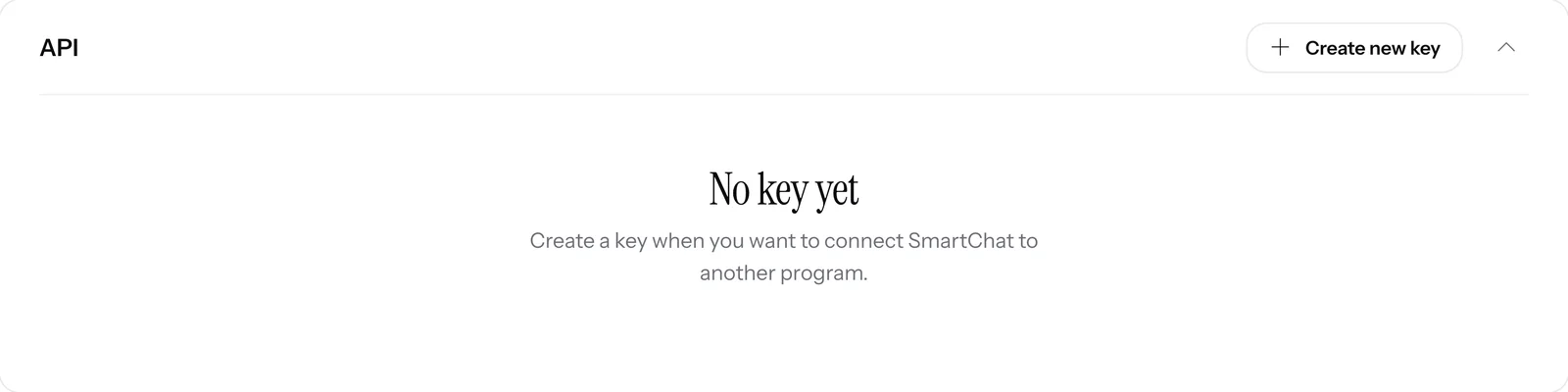
In SmartChat, you open Settings, Integrations and click Create new key next to API.
- 2
You enter the key in your system
Your system sends the key with every request. That is all it takes to sign in.
Authorization: Bearer DEIN_API_SCHLUESSEL - 3
Your system tests the connection
The first request shows which account the key belongs to and what it may do.
GET https://api.smartchat.marketing/v1/me { "account": { "name": "Technikhaus Zeller" }, "key": { "name": "Kassensystem" }, "auth_type": "api_key" } - 4
The first contact arrives
When a customer buys a smartphone and gives her mobile number at the checkout, she appears in your contacts shortly after, with a tag and the status Unconfirmed.



No more transferring contacts by hand.
Without a connection, your team maintains two lists. With the API, the second one maintains itself.
Without API
- New customers from your program are transferred to the contact list by hand in the evening.
- Someone adds who bought or booked what as a tag when they remember.
- For every new offer, someone builds the newsletter schedule in the app from scratch.
- The numbers from WhatsApp and from your program sit in two windows.
With the SmartChat API
- Every new customer lands as a contact in SmartChat at the same moment.
- Your program sets the tags itself, matching the purchase or booking.
- A new offer in the program becomes a scheduled newsletter with a date.
- Your own dashboard fetches the statistics from SmartChat.
Your contact list stays up to date.
Contacts that your program creates appear next to all the others in SmartChat. With tag, source and the status of their consent.

No contact twice
If the number already exists, SmartChat returns the existing contact. If you want, your program changes it instead.
Consent stays protected
If your program changes the mobile number, the contact has to confirm again. Consent never moves to another number.
Tags from outside
Your program sets and removes tags. After that, you send newsletters to exactly this group.
Your system schedules the newsletter.
Through the API, your program creates a WhatsApp newsletter as a draft, changes it and schedules it for a date. Until sending starts, it can also cancel the schedule again.

Date from the project plan
When a new date appears in the program, such as the opening of the show apartment, it schedules the newsletter along with it.
Check status
Your program asks whether a newsletter is scheduled, being sent or sent.
Approval by Meta
Through the API, your program also creates templates and submits them to Meta for approval.
SmartChat notifies your system.
With a webhook subscription, your program automatically learns about several events, for example a new contact or a new message. Every notification is signed, so your program can check that it really comes from SmartChat.
curl -X POST https://api.smartchat.marketing/v1/webhook-subscriptions \ -H "Authorization: Bearer DEIN_API_SCHLUESSEL" \ -H "Content-Type: application/json" \ -d '{"url": "https://technikhaus-zeller.de/smartchat", "event": "contact.created"}' # Response 201: subscription plus secret for the signature { "subscription": { … }, "secret": "whsec_…" }POST https://technikhaus-zeller.de/smartchat X-SmartChat-Event: contact.created X-SmartChat-Timestamp: 1792400000 X-SmartChat-Signature: v1=… { "event": "contact.created", "data": { "name": "Jonas", "optin_whatsapp": "none", "tags": ["Heimkino"] } }# You can subscribe to several eventsYour program sends, WhatsApp delivers.
Through the API, your program sends a single contact a WhatsApp message, for example a reminder on the evening before an appointment.
Only with consent
Anyone who wrote STOP gets nothing.
Approved template
Your program sends a template approved by Meta, with a button if you want.
Replies in the inbox
If your contact replies, the message lands in the inbox. There, SmartChat AI or your team replies.


The SmartChat API is included in every plan.
You pay nothing extra for the API. The limits of your plan apply, for example the number of messages per month. All prices plus VAT.
| Free | Starter | Basic | Pro | |
|---|---|---|---|---|
| Price per month | 0 € | 299 € | 499 € | 999 € |
| API key | yes | yes | yes | yes |
| Webhook subscriptions | yes | yes | yes | yes |
| Messages | 100 one-time | 3,000 per month | 6,000 per month | unlimited |
| Contacts | unlimited | unlimited | unlimited | unlimited |
Frequently asked questions about API.
Do I need technical knowledge for the API?
Yes, the API connects your system with SmartChat, and that takes a few lines of code. Without code, you use the AI Chat or connect an AI app like Claude or ChatGPT via MCP.
What do businesses use the SmartChat API for?
A car rental company creates contacts from its booking software, an electronics retailer from its checkout system, and a property developer schedules newsletters directly from its project software. You can find more examples under WhatsApp marketing for car rental companies, WhatsApp marketing for electronics retailers and WhatsApp marketing for real estate developers and builders.
How much does the SmartChat API cost?
The API is included in every plan, even in the free Free plan. Normal calls cost no credits. Credits only count for tasks where SmartChat AI works for you, just like in the AI Chat.
What does WhatsApp cost at Meta if I send via the API?
Meta charges the fees for WhatsApp messages directly to you, whether you send in the app or via the API. For that, you add a payment method in your Meta account. With SmartChat, you also pay for your plan. You can find the exact prices under Meta fees.
Can the API send WhatsApp messages to any number?
SmartChat only sends newsletters and follow-ups after the contact has confirmed.
Does a new contact from the API get a message right away?
No, a contact from the API is first set to Unconfirmed. They only get newsletters and follow-ups once they have agreed, for example through your website popup, your landing page or your QR code.
What happens if a contact from the API writes STOP?
The contact writes STOP in the chat. SmartChat then sends them nothing more, not even via the API. Your program learns about it through the API events.
Who can create API keys?
Admins only. The API is in the settings under Integrations. Team members do not see this area.
What do I do if a key falls into the wrong hands?
You generate it again or delete it with one click. The old key stops working immediately afterwards.
How many API keys can I create?
It is best if each program gets its own, then you can see for each one when it was last used.
How does my software find out about new contacts or messages?
Through a webhook subscription. SmartChat then notifies your program, for example about a new contact or a new message. If SmartChat cannot reach your program, SmartChat tries again several times later.
What is the difference between API and MCP?
The API is for your own programs and works with a key. With MCP you connect an AI app like Claude or ChatGPT, which you sign in with your SmartChat account.
Where do I find the technical guide?
In the API quickstart. It has all the steps from the first key to the first contact, with examples to copy.
Connect your system to SmartChat.
Enter your website. In 60 seconds, your WhatsApp marketing system is ready, and you create your first API key right afterwards in the settings.