Email notifications for you and your team.
SmartChat sends you an email when a contact writes to you in WhatsApp, when SmartChat AI hands a conversation over to you and when there is a problem with your account.

When SmartChat sends you an email.
Every incoming WhatsApp message triggers an email. On top of that come emails for problems with your account.
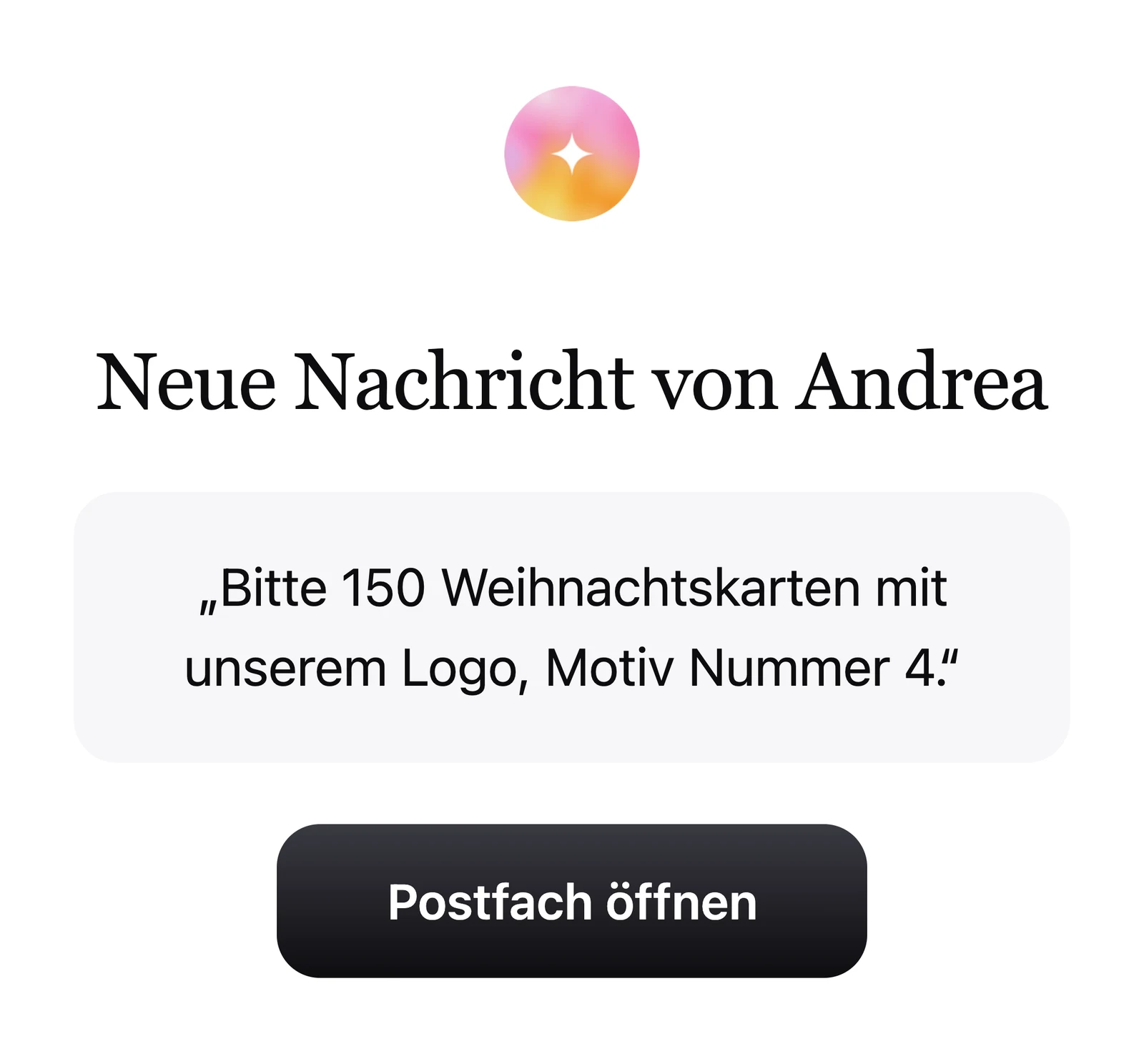
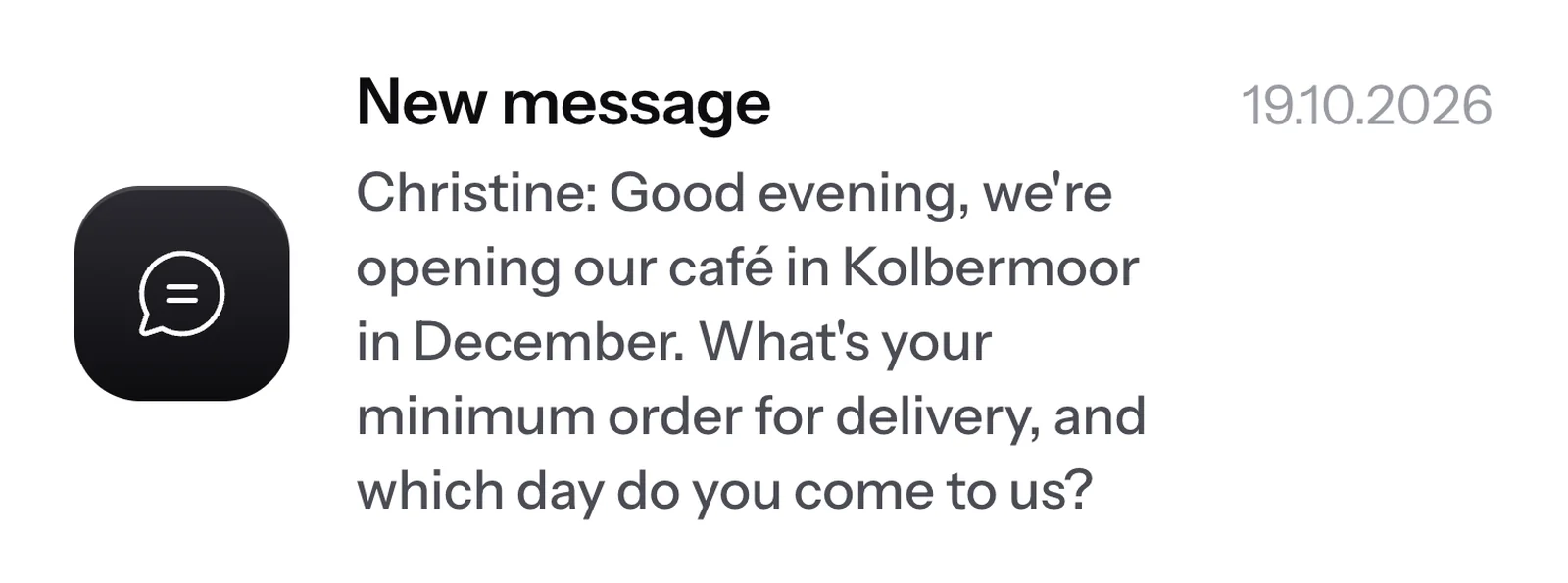
New message
Your contact replies to your newsletter. The email includes their name and their message.
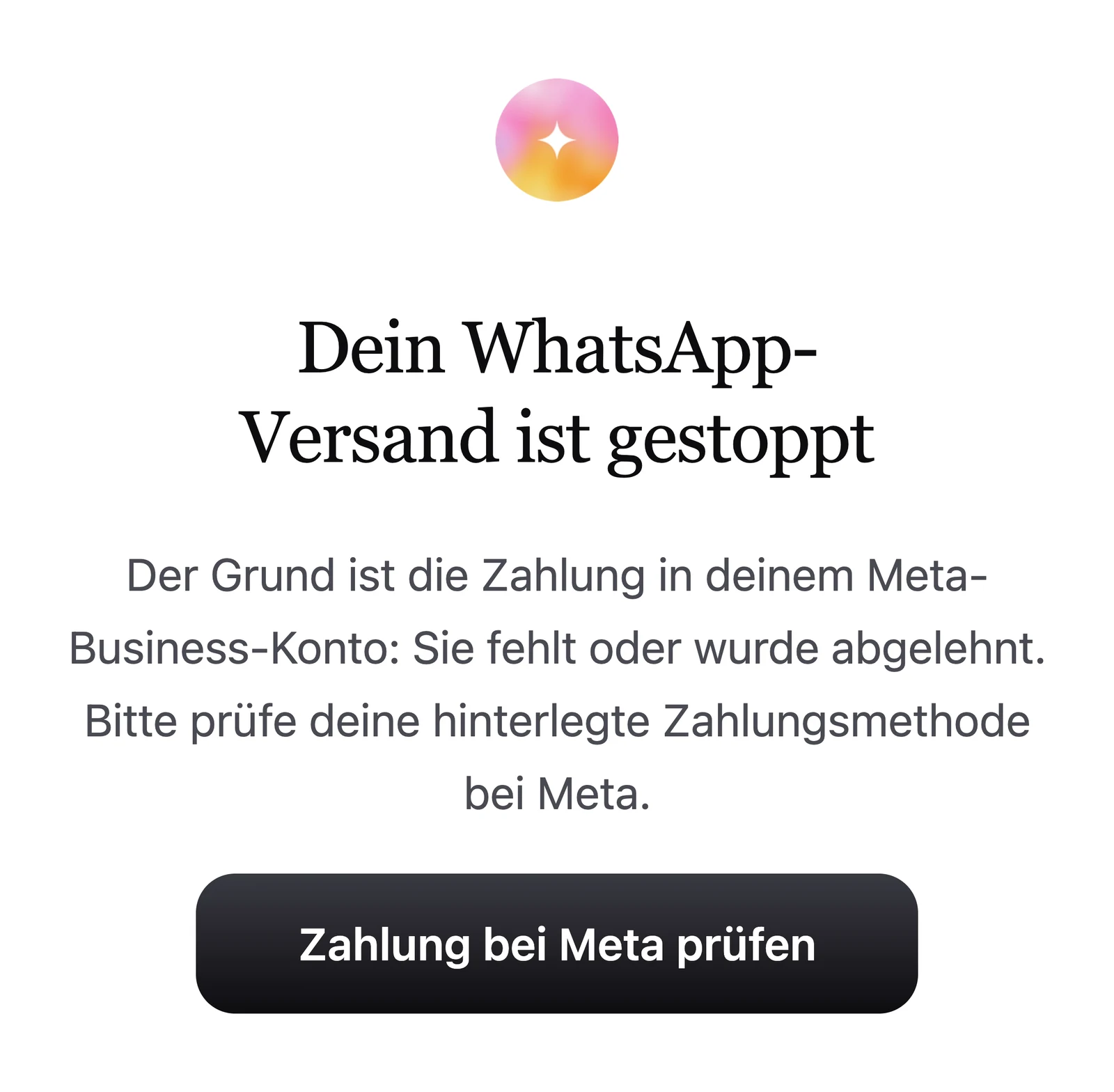
Payment at Meta is missing
If the payment is missing in your Meta Business account, your WhatsApp sending is stopped. With one click, you check your payment method at Meta.
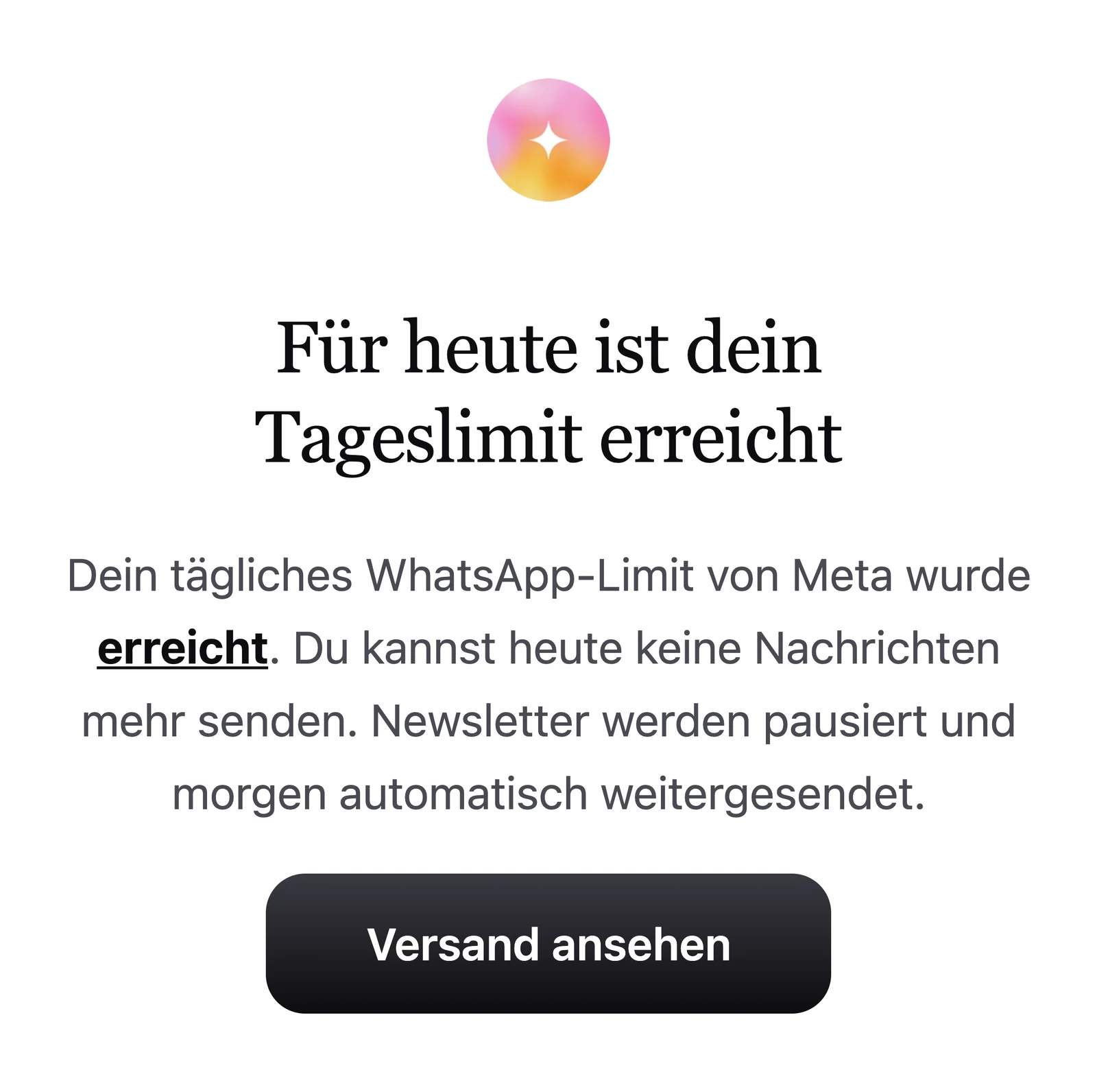
Daily limit reached
If your daily WhatsApp limit from Meta is reached, your newsletter is paused and automatically continues the next day.
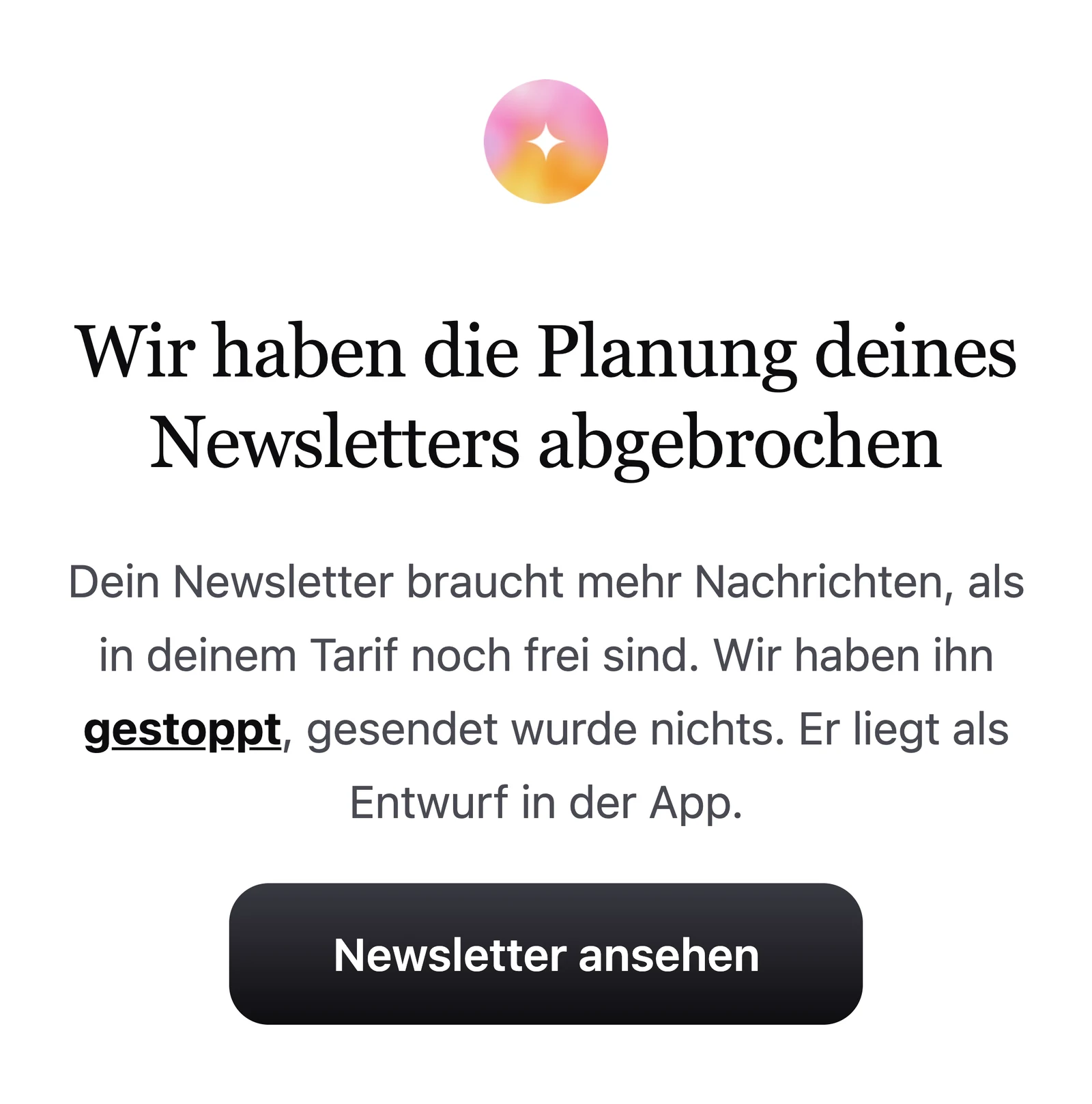
Newsletter is not sent
If your scheduled newsletter needs more messages than are still free in your plan, it is stopped and sits as a draft in SmartChat.
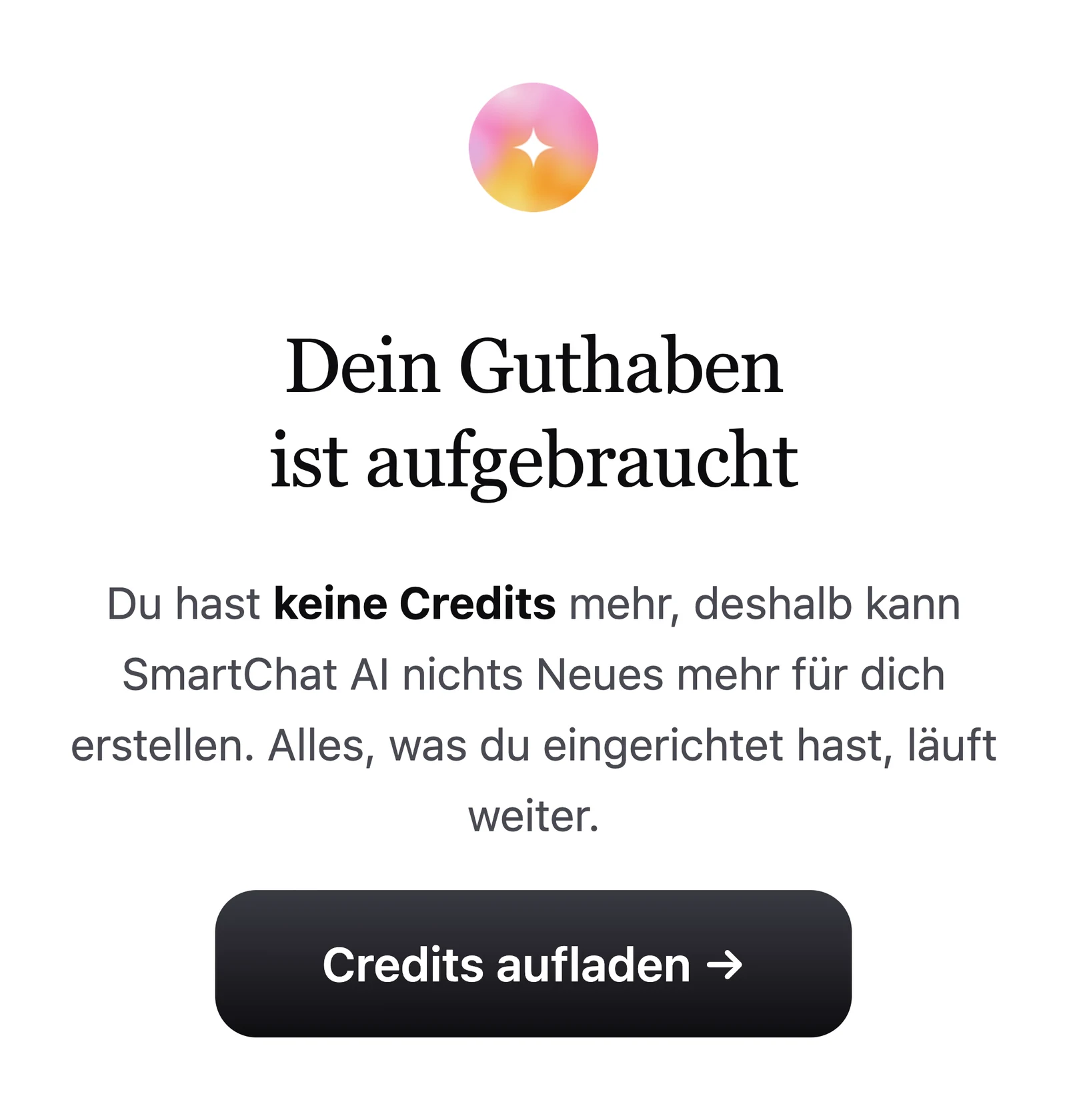
Credits used up
If you have no credits left, SmartChat AI can't create anything new for you. Everything you've set up keeps running.
This is how the email is built.
Short and clear. You can already see in your inbox who wrote and what it's about.
- 1
The name is in the subject line
Instead of "New message", you see right away who is writing to you. SmartChat takes the name from the contact.
- 2
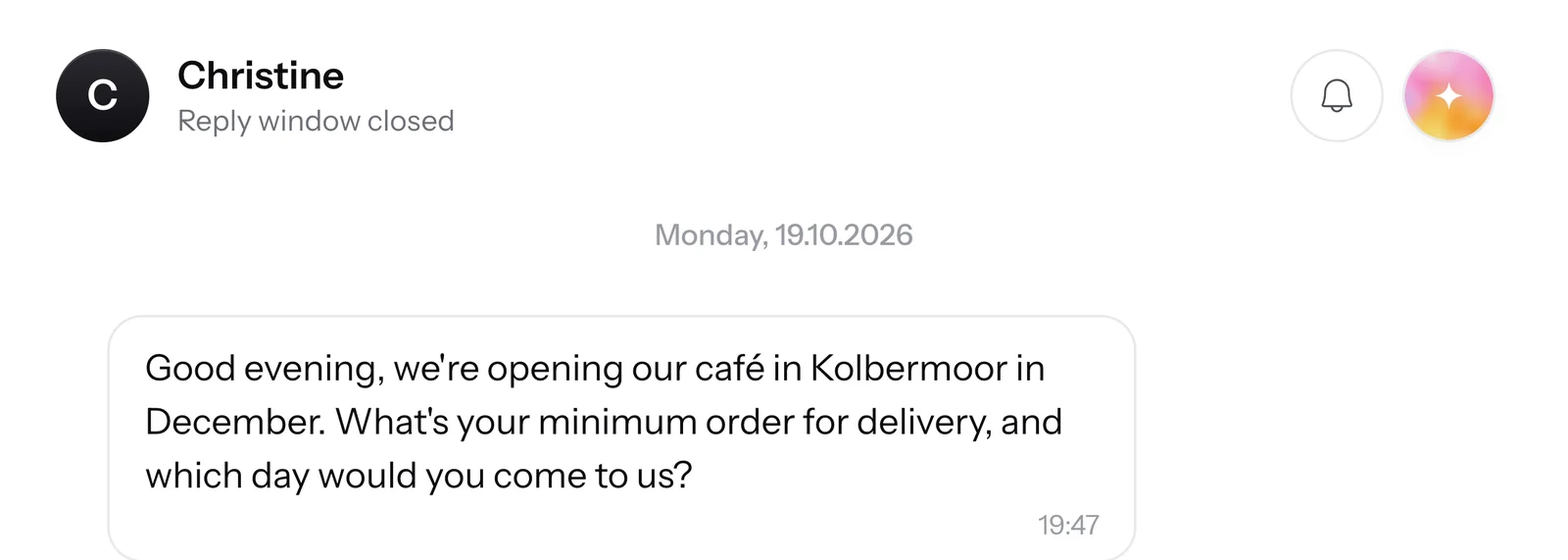
The message word for word
Below it is what your contact wrote. Often that already tells you whether it's urgent.
- 3
A button right into the conversation
One click on Open inbox, and you're in exactly that conversation. No searching needed.
- 4
In your account's language
The email comes in German, English, Italian, French or Spanish, depending on your account's language.



One click, and you're in the conversation.
If the AI reply is turned on, SmartChat AI replies to your contact automatically. The email still arrives so you can read along and keep writing yourself if you want.

Straight to the message
The button takes you directly into that exact conversation.
Reply from SmartChat AI
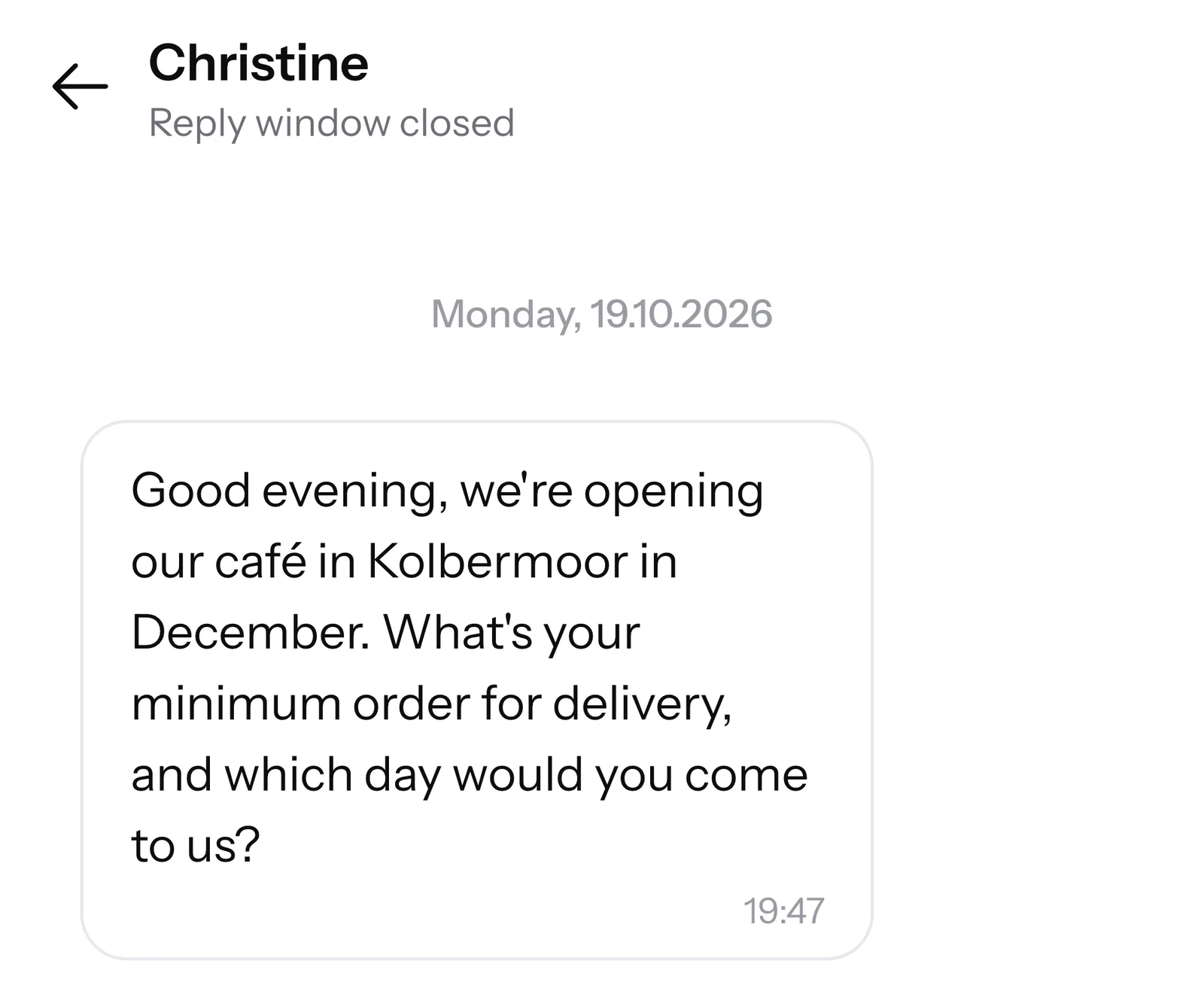
With the AI reply turned on, you can see in the conversation what SmartChat AI wrote.
You keep writing
If you want to add something yourself, write your reply right below it.
You hear about problems with your account first.
If a payment method is missing or the status of a template changes, SmartChat sends you a system email. It tells you what's going on and how to fix it.

You know what to do
If the payment is missing at Meta, the button takes you straight to the place where you check it.
Once a day is enough
If a problem lasts longer, you still get only one email a day about it.
Also via WhatsApp
For urgent problems, there are the WhatsApp notifications.
Who gets which email.
Every person on the team sets up their own emails. SmartChat handles what an admin may and may not turn off.
| Admin | Team member | |
|---|---|---|
| System emails | Always on | Does not receive it |
| New message | Can be turned off | Can be turned off |
| AI couldn't reply | Can be turned off | Can be turned off |
| Payment at Meta is missing | yes | no |
| Daily limit and messages per month | yes | no |
| Status of your templates | yes | no |
Frequently asked questions about Email notifications.
Does SmartChat also send emails to my contacts?
No, SmartChat sends your contacts WhatsApp messages only. The email notifications go only to you and the people on your team.
Which email notifications are there?
There are three: System emails for important notices about your account, New message when someone writes to you in WhatsApp, and AI couldn't reply when SmartChat AI hands a conversation over to you.
Where do I set up my email notifications?
In the settings under Personal account and then Email notifications. One click on a switch saves right away.
Can I turn off the system emails?
No. Only admins get system emails, and they can't be turned off, because an admin has to hear about every problem with the account right away.
Does everyone on the team get their own email?
Yes, SmartChat sends each person their own email to the email address they sign in with. The switches only apply to the person who sets them.
Do I get an email for every message?
Yes, every incoming WhatsApp message triggers its own email, including the second and third in the same conversation. If you want fewer emails, turn off "New message".
When does the "AI couldn't reply" email arrive?
As soon as SmartChat AI can't reply and the conversation is passed on to you. The switch only exists when the AI reply is turned on.
What does the email about a new message contain?
The subject line shows your contact's name, below it their message and the Open inbox button.
In which language do the emails arrive?
In the language of your account: German, English, Italian, French or Spanish.
Which industries are the email notifications right for?
For every business that gets inquiries via WhatsApp. These examples show what that looks like day to day: WhatsApp marketing for print shops, WhatsApp marketing for wholesalers and WhatsApp marketing for business consultants.
Why should I keep "New message" turned on?
Because you can reply to a message from your contact in WhatsApp for 24 hours without a template. The email tells you right away, and you reply in the inboxwhile the 24 hours are running.
What do the email notifications cost?
Nothing, they're included in every plan, even Free for €0 with no time limit. The paid plans cost €299, €499 and €999 per month, all prices plus VAT.
What does WhatsApp cost at Meta, and what does the email have to do with it?
Meta charges the fees for WhatsApp messages directly to you. For that, you add a payment method in your Meta account, and if the payment is missing, a system email lets you know.
You give SmartChat AI the address of your website. Within 60 seconds, your WhatsApp marketing system is ready, with a landing page and QR code. Then you connect your number and send your first message.
Anyone who has confirmed your newsletter writes STOP in the chat. From then on, SmartChat sends them nothing more and shows them in your contact list as unsubscribed.
Never miss a message again.
Enter your website. In 60 seconds, your WhatsApp marketing system is ready, and your email notifications are on from the start.