Invite your team and assign roles.
In SmartChat you invite your team to your account and use the role Admin or Employee to decide who gets which rights.

First SmartChat AI, then your team.
SmartChat AI answers what it knows. Your team takes over the rest in the inbox, and nobody replies twice.
A contact writes
A message comes in via WhatsApp and immediately appears in the inbox, visible to everyone on the team.
inboxSmartChat AI answers
With the AI reply, SmartChat AI replies right away. It answers with the knowledge it has learned from your website and your documents, in the evenings and on weekends too.
AI repliesHandover to the team
If SmartChat AI can't answer, the conversation is passed on to your team. If you like, your team also gets an email about it.
AI couldn't replyYour team replies
An admin or employee writes back. Once a person has replied, SmartChat AI no longer replies to that message.
Admin or employee
This is how someone joins your team.
You invite a person under Settings, Team. They then create their own access, and you don't need a shared password.
- 1
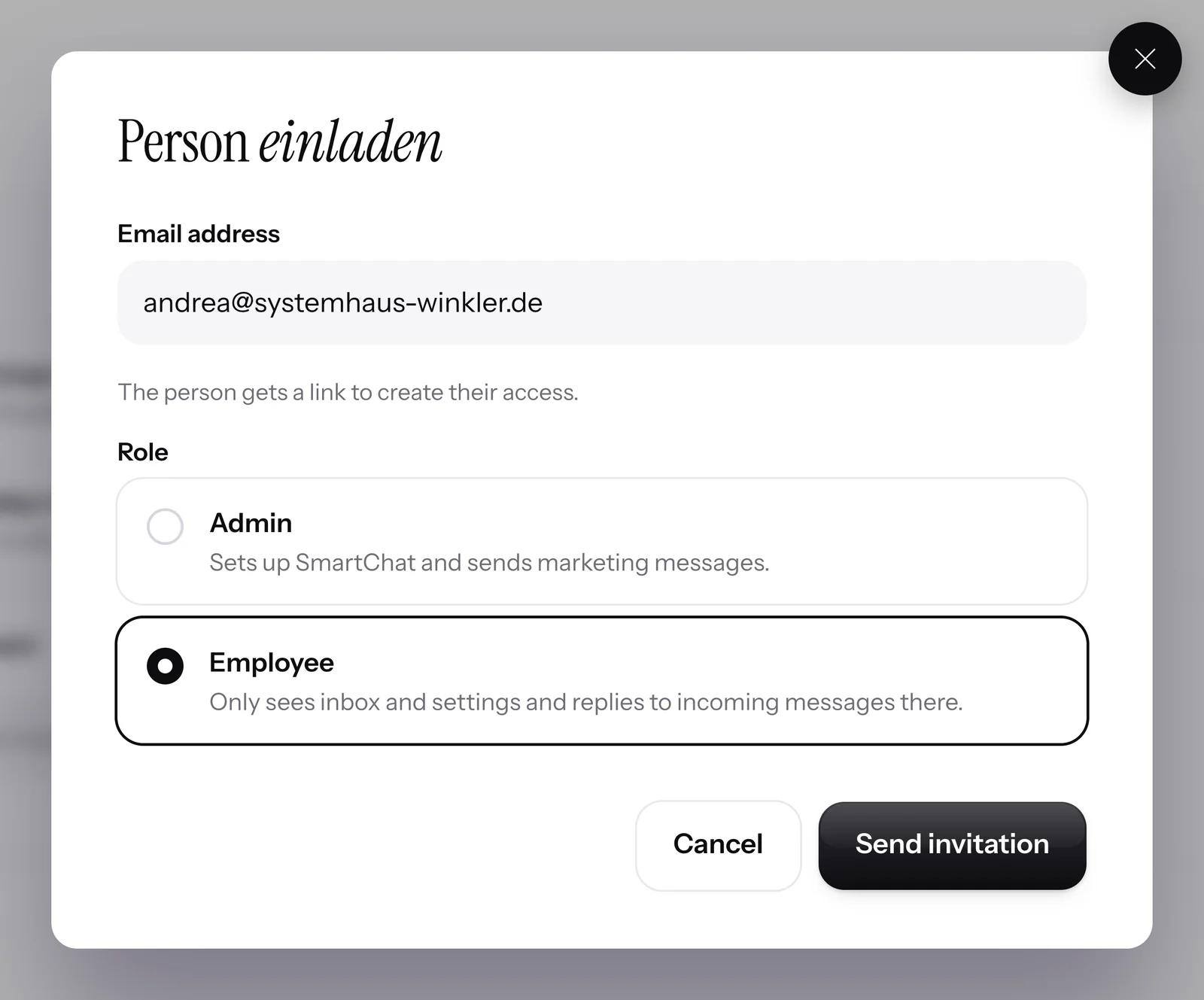
Enter the email address
Enter the person's email address below the list. Each email address appears only once in the team.

- 2
Choose the position
The admin sets up SmartChat and sends marketing messages. Staff only see the inbox and settings, and reply to incoming messages there.
- 3
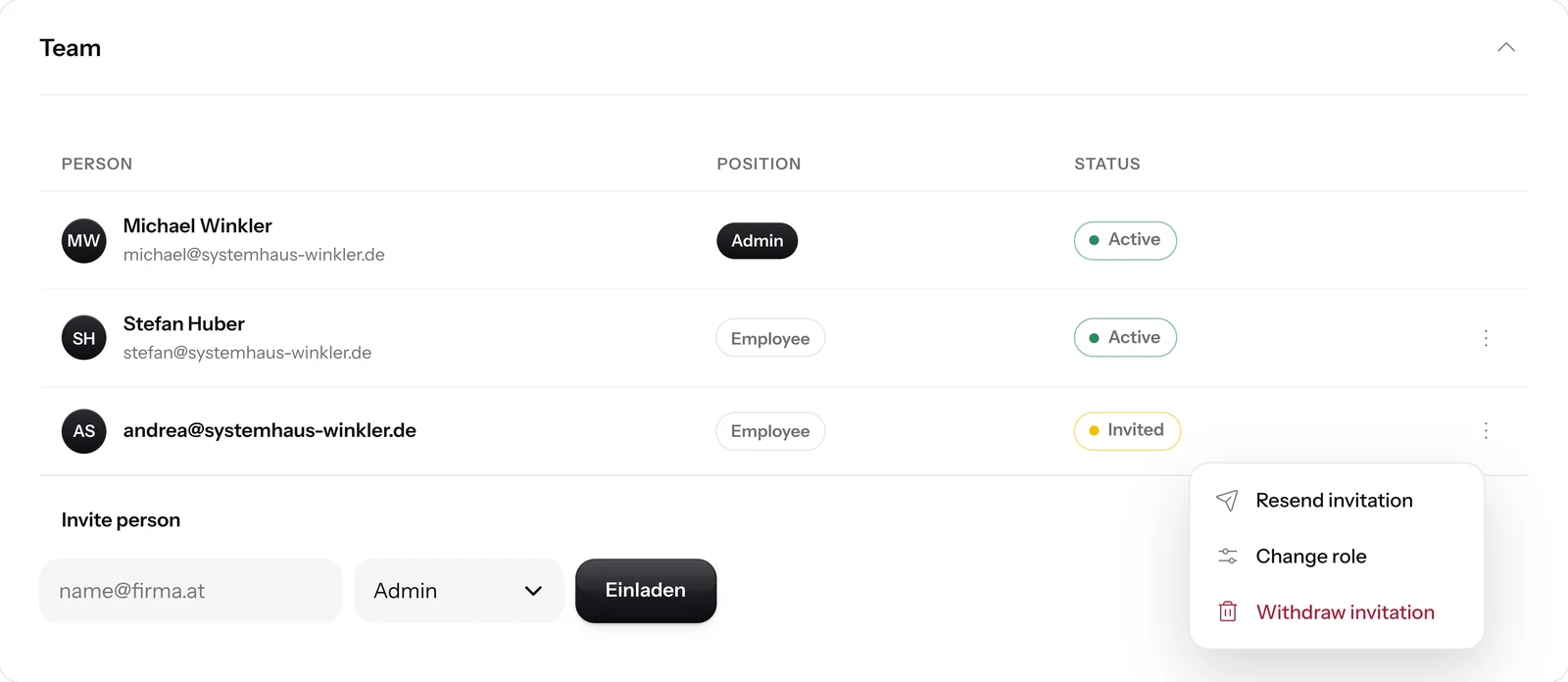
Link by email
The person receives a link to create their access. If someone missed the link, you send the invitation again with one click.
- 4
Create access
With the link, the person creates their own access and then logs in with a code by email. From then on they appear in your list as Active and can reply right away.
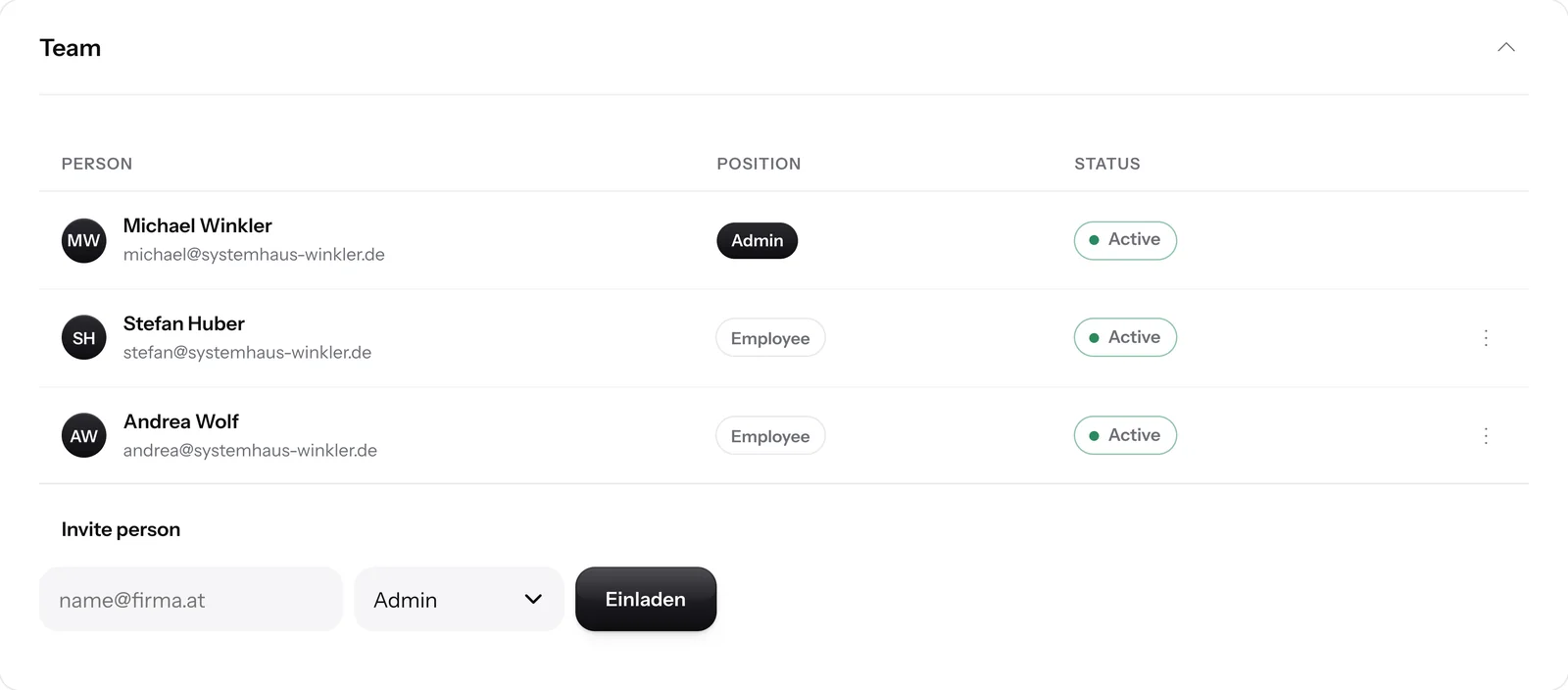


You change roles with one click.
Via the three dots next to a person, you change their role or remove them from the team. Only admins can do that.

Applies immediately
The new role applies immediately. Nobody needs a new password for it.
Replies are kept
If you remove a person, their replies stay readable in the inbox for your team.
Resend invitation
If someone missed the link, you just send the invitation again via the three dots.
Who has which permission?
The admin sets up SmartChat and sends marketing messages. Staff only see the inbox and settings, and reply to incoming messages there.
| Admin | Team member | |
|---|---|---|
| Reply to WhatsApp messages in the inbox | yes | yes |
| Own notifications and two-factor | yes | yes |
| Send newsletters and follow-ups | yes | no |
| Set up automations | yes | no |
| Edit landing page and website popup | yes | no |
| Import contacts and assign tags | yes | no |
| View statistics | yes | no |
| Set up SmartChat AI and Knowledge & documents | yes | no |
| Invite team, change roles and remove members | yes | no |
| Manage API keys | yes | no |
| Book and upgrade a plan | yes | no |
Everyone gets their own access.
In SmartChat, every person logs in with their own email address. That way you always know who has access, and you take it away again with one click.
One login for everyone
- Everyone in the company knows the same password
- Everyone sees invoices and all settings
- When someone leaves your company, you change the password for everyone
One access for each person
- Each person logs in with their own email address and a code by email
- Employees only see the inbox and settings
- If you remove someone, their access is gone immediately
- Two-factor protects each access individually
Your contact only sees your business.
No matter who on your team replies: your contact receives every message from your company's WhatsApp number, in the same chat as always.
One number for everyone
Your team replies through SmartChat. Nobody has to give out their private mobile number.
Everything in the same chat
If someone on your team takes over, your contact simply keeps writing in the same chat.
Protected access
Each person can additionally secure their access with two-factor authentication.


Everyone sees the same conversations.
In the inbox, all WhatsApp conversations of your business are in one place. SmartChat AI replies first, and whoever on your team has time writes on.

One inbox for everyone
Admins and employees work in the same conversations, nobody has to forward messages.
SmartChat AI hands over
If SmartChat AI can't answer, the conversation is passed on to your team, with everything that was said before.
No double replies
If someone on your team has answered a message, SmartChat AI doesn't answer it again.
Everyone sets up their notifications themselves.
If you don't want an email notification for every new message, you can turn it off at any time. Only admins receive the important system emails, and they can't be turned off. More on this in the Email notifications.

This many seats come with your plan.
A seat is one person with their own access. Your own access counts, and invitations that haven't been accepted yet do too.
- 1 seatFree
- 3 seatsStarter
- 6 seatsBasic
- 12 seatsPro
When all seats are taken.
If you want to invite another person and your plan is full, SmartChat shows you right away. You switch to a bigger plan or remove a member.

More seats in the bigger plan
Basic has 6 seats, Pro has 12. An admin books the switch.
The limit applies when inviting
The limit only applies when you invite someone new.
What does a bigger team cost??
Team seats cost nothing extra, they are included in your plan. If you need more seats, you switch to a bigger plan. All prices plus VAT.
| Free | Starter | Basic | Pro | |
|---|---|---|---|---|
| Price per month | 0 € | 299 € | 499 € | 999 € |
| Team seats including you | 1 | 3 | 6 | 12 |
| Roles Admin and Employee | yes | yes | yes | yes |
| Own access for each person | yes | yes | yes | yes |
| Two-factor for each person | yes | yes | yes | yes |
| AI reply in the inbox | yes | yes | yes | yes |
| Messages | 100 one-time | 3,000 per month | 6,000 per month | unlimited |
Frequently asked questions about teams.
Which roles are there in SmartChat?
There are two roles: Admin and Employee. The admin sets up SmartChat and sends marketing messages. The employee only sees the inbox and settings and replies there to incoming messages. Whoever created the account is automatically the admin.
What can an employee do in SmartChat?
An employee only sees the inbox and settings and replies there to incoming messages. In the settings they manage personal things, for example language, two-factor and their own notifications. They don't see newsletters, automations, contacts or statistics.
What can an admin do in SmartChat?
An admin sets up SmartChat, sends newsletters and follow-ups, builds automations and the landing page, manages API keys and can book a bigger plan. They also invite your team, change roles and remove members.
Who can invite and remove people?
Only admins can. They invite people, change a person's role via the three dots next to their name, and remove them from the team.
How do I invite someone to my team?
In SmartChat, open Settings, Team, enter the person's email address, choose the position Admin or Employee and click Invite. The person gets a link and uses it to create their own access.
Does an additional team member cost extra?
No, team seats are included in the plan: Free 1, Starter 3, Basic 6 and Pro 12. If you need more seats, you switch to a bigger plan. Starter costs €299 per month, all prices plus VAT.
Does my own access count as a seat?
Yes, your own access takes up one seat. Invitations that haven't been accepted yet count too. So on the Starter plan you can invite up to two more people.
What happens when all seats are taken?
Then SmartChat shows you when inviting that all seats are taken. You switch to a bigger plan or remove a member.
Can I change a person's role later?
Yes. Under Settings, Team, click the three dots next to the person and choose Change role. The new role applies immediately.
What happens to messages when I remove someone?
The person immediately loses access to SmartChat. Messages and notes they wrote are kept and remain readable for your team.
Can my contact see who on the team is replying?
No, every reply comes from your business's WhatsApp number. Your contact only sees who wrote if you put it in the message yourselves.
What does WhatsApp cost at Meta when my team replies?
Meta charges the fees for WhatsApp messages directly to you, no matter who on your team writes. If you reply to a contact within 24 hours of their message, you don't need a template.
For which businesses is a team in SmartChat worth it?
For every business where more than one person answers WhatsApp messages. You'll find examples under WhatsApp marketing for recruiters, WhatsApp marketing for IT service providers and WhatsApp marketing for cleaning companies.
Invite your team to SmartChat in under 60 seconds.
Enter your website. SmartChat creates your WhatsApp marketing system, and from the Starter plan on, you then invite your team under Settings, Team.