Your account protected twice over.
SmartChat sends you a code by email or WhatsApp for every login, and with two-factor authentication SmartChat also asks for a code from your authenticator app.

How to log in.
SmartChat sends you a new code for every login. The login page never reveals to anyone whether an address has an account.
- 1
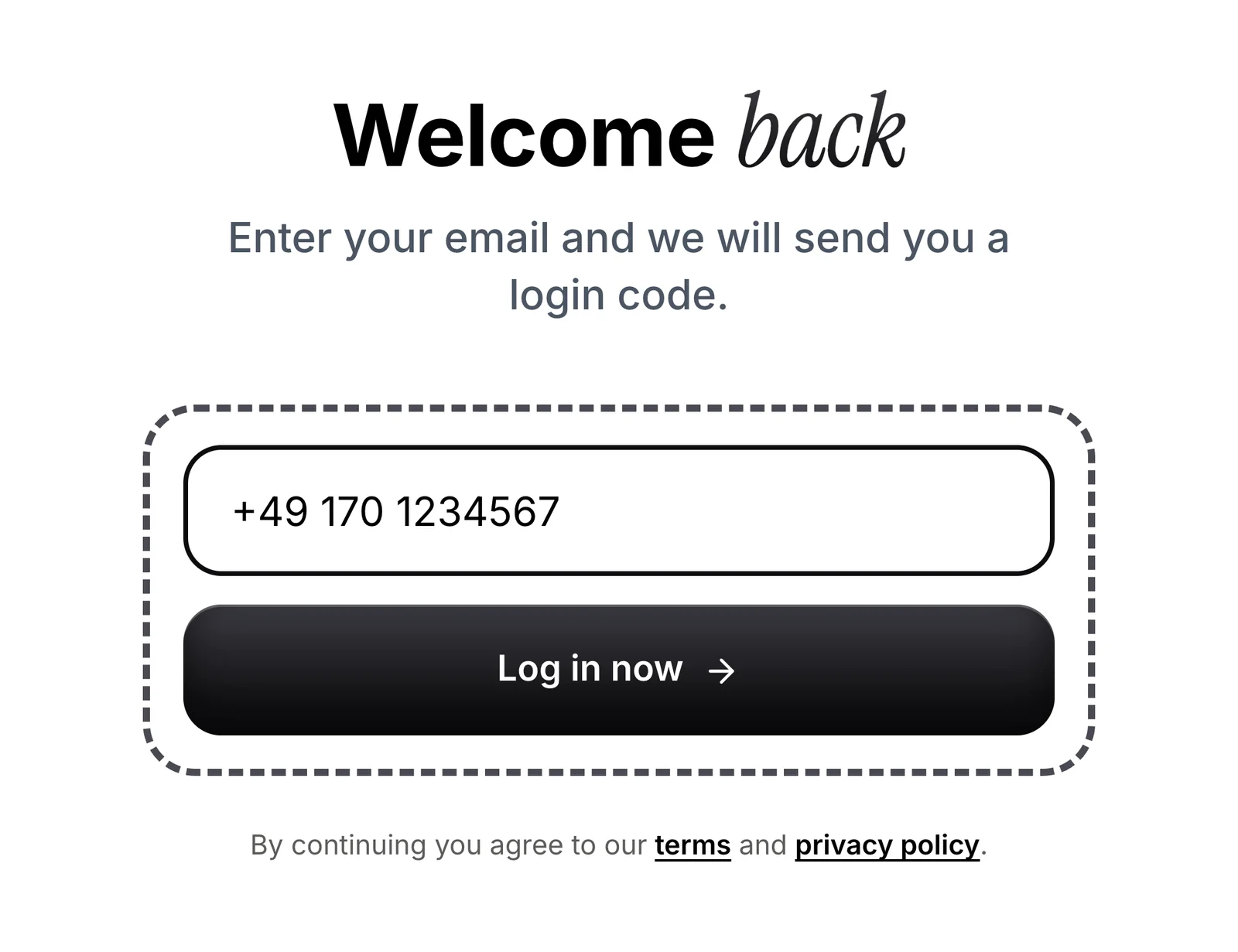
Enter email or number
You enter your email address or the mobile number you saved in your settings.
- 2
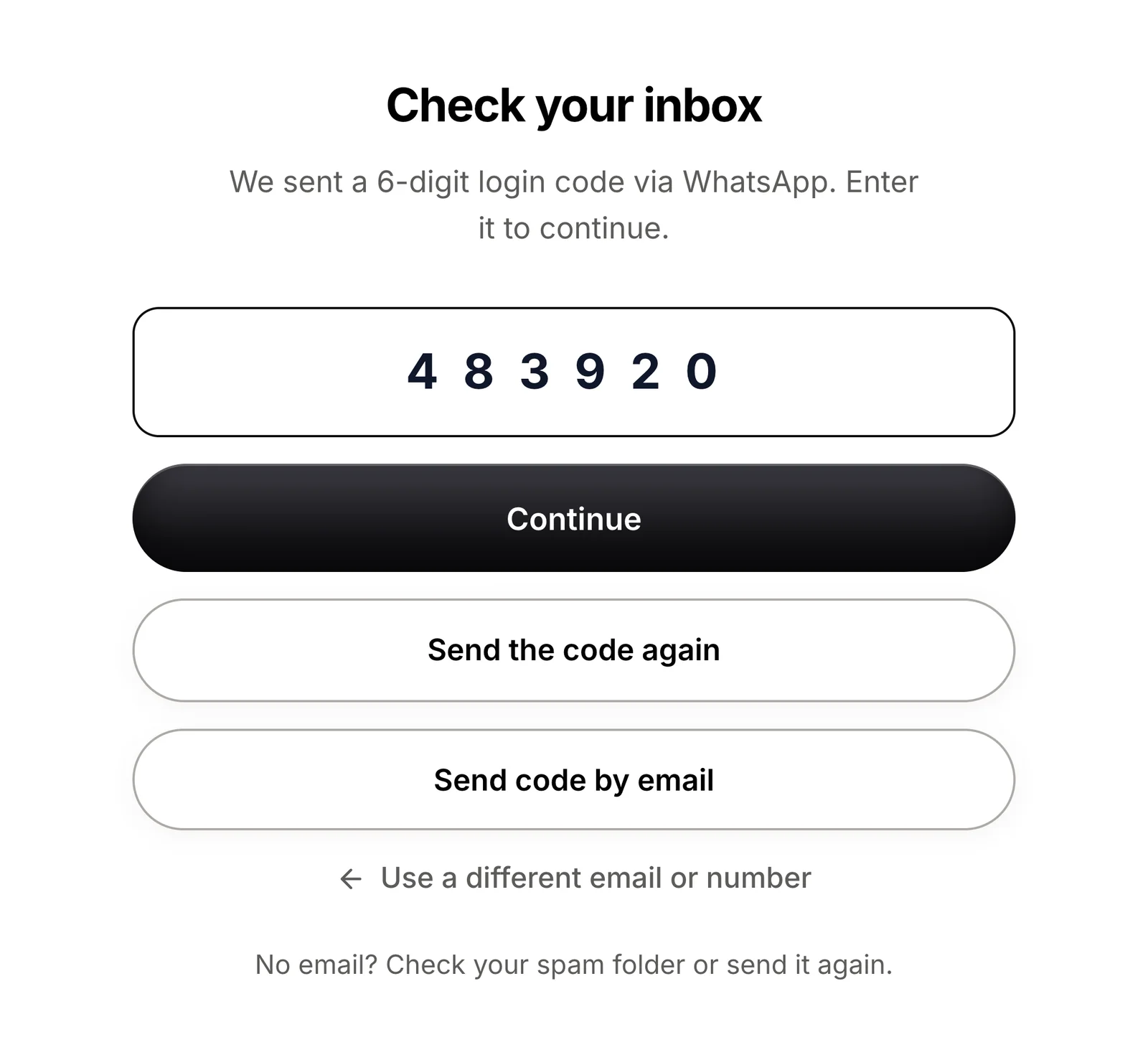
Enter the login code
SmartChat sends you a code by email or WhatsApp. If it doesn't arrive, you request it again.
- 3
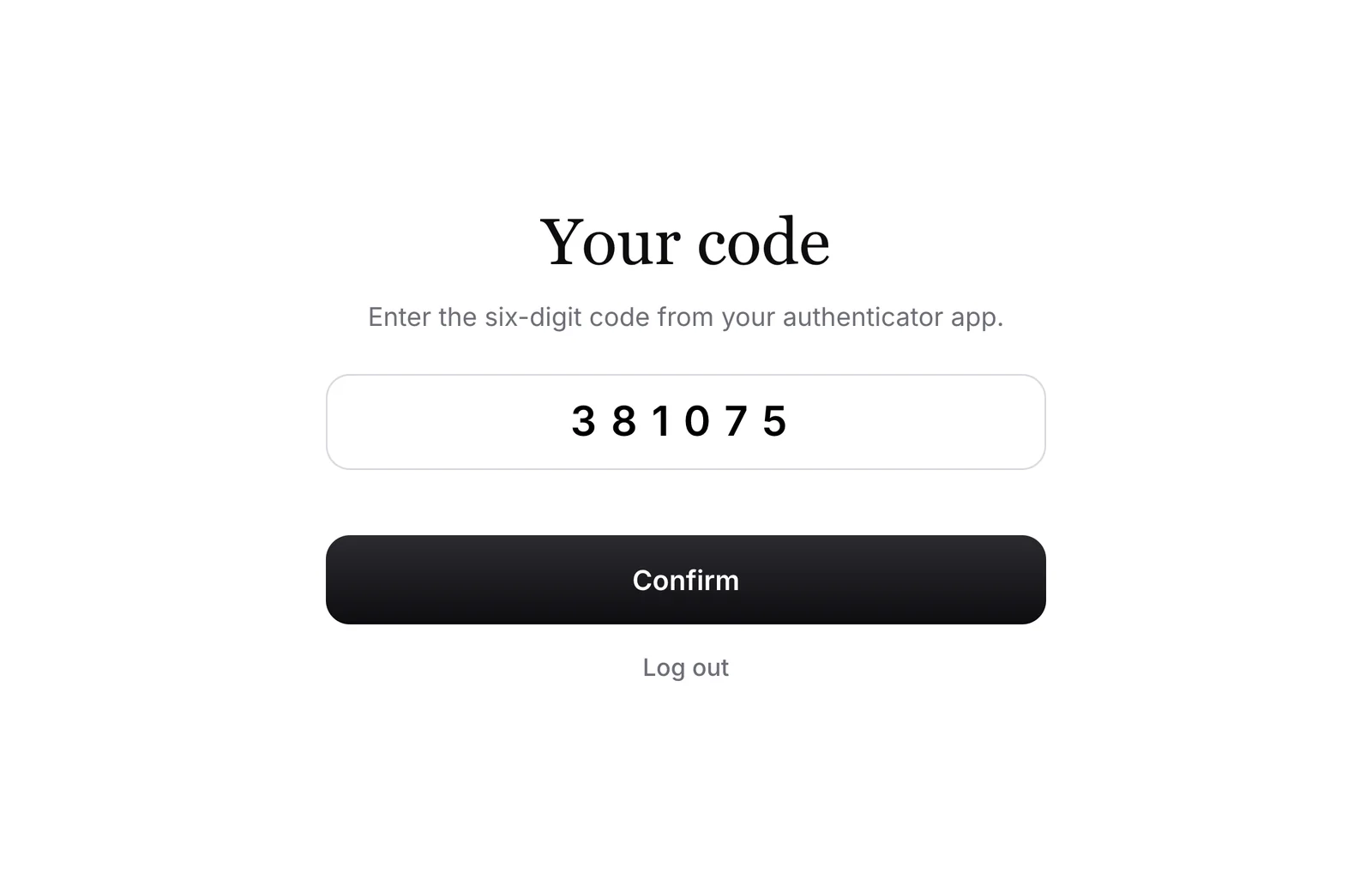
Code from your app
If you turned on two-factor authentication, SmartChat then asks for the code from your authenticator app.


Two-factor for every person.
Two-factor authentication is optional and included in every plan. It protects your account with a code from an authenticator app.
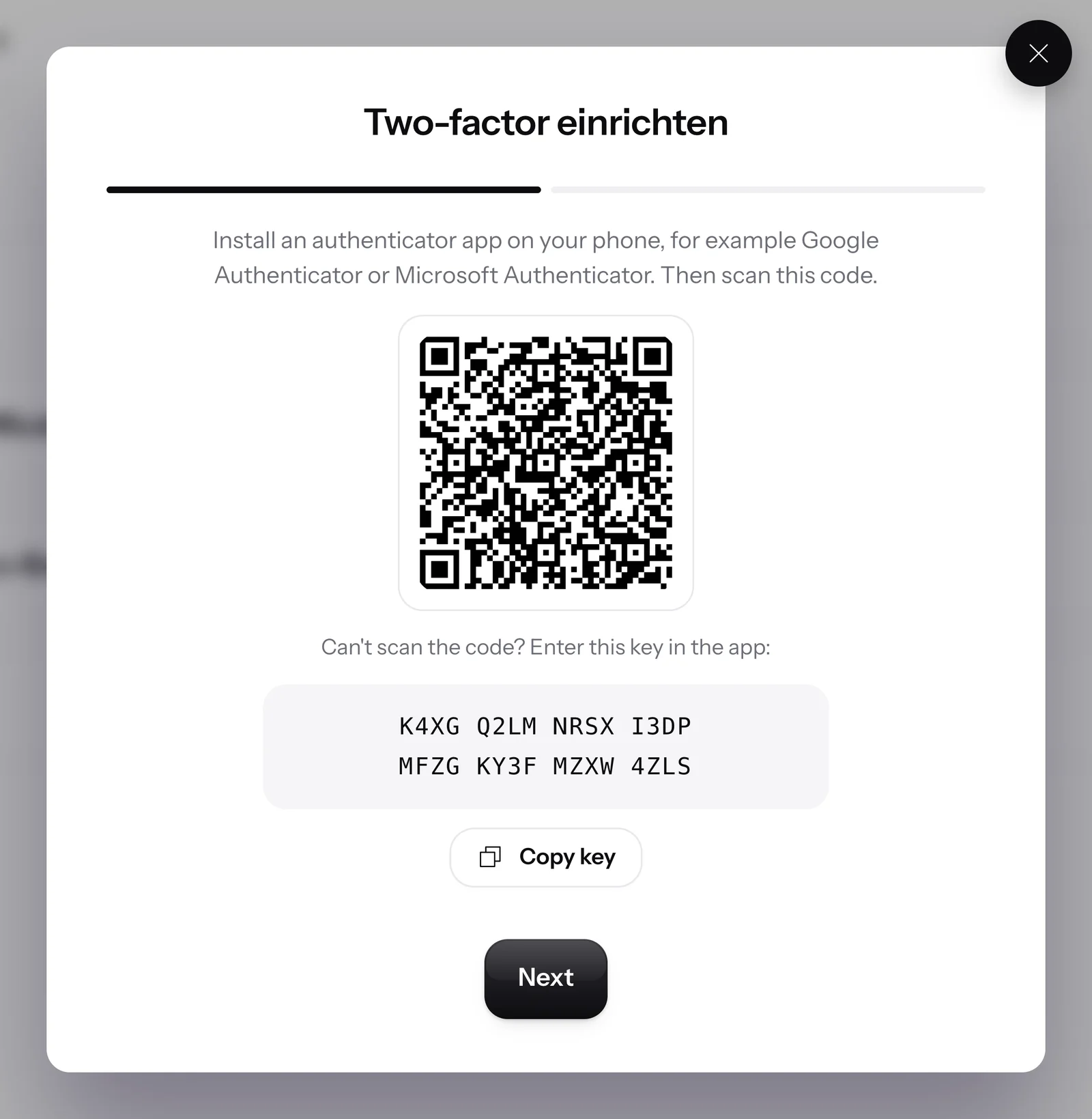
With an authenticator app
You scan the QR code with an authenticator app, for example Google Authenticator or Microsoft Authenticator. More about two-factor authentication
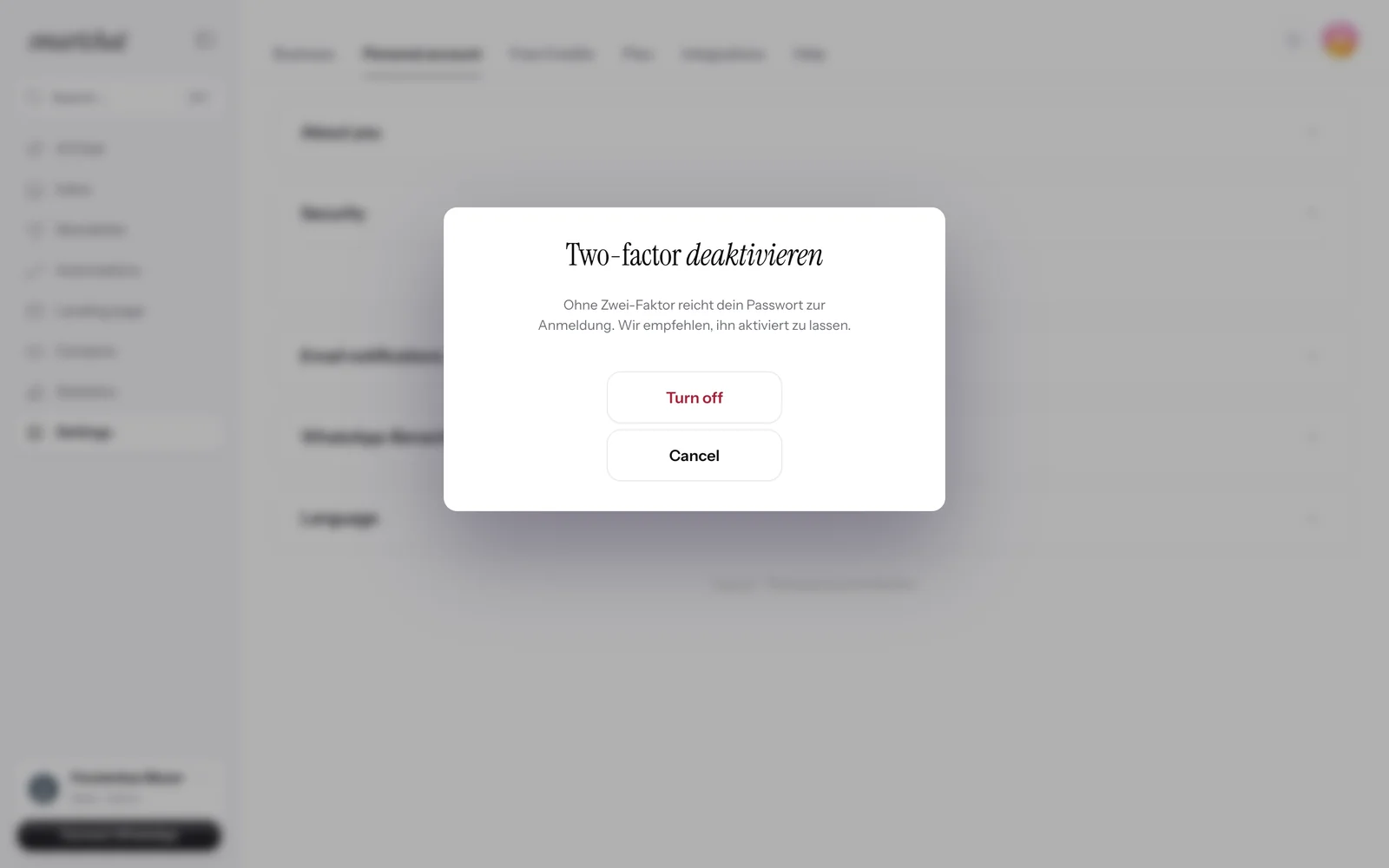
Turn it off again
You can also turn two-factor authentication off again in your personal account.

Login code on WhatsApp
With the WhatsApp Login your login code comes via WhatsApp. You can use it together with two-factor authentication.


Your account protected.
You log in without a password and add extra protection to your account if you need it.
- A new codecomes with every login, by email or WhatsApp.
- Optional:two-factor authentication is included in every plan.
- Authenticatoris the name of the app you use to create the extra code.
Frequently asked questions about Login and two-factor.
How do I log in to SmartChat?
You enter your email address or your saved mobile number. SmartChat sends you a login code by email or WhatsApp, and with this code you're logged in.
How do I get the login code on WhatsApp?
Add your mobile number under Settings, Personal account, Security and confirm it once on WhatsApp. After that, you log in with your email address or number. Learn more under WhatsApp Login.
What happens if I request the code too often?
You can send the code again. Then you enter the code you received or try again later. SmartChat tells you when it works again.
Does SmartChat reveal whether an email address has an account?
No. The login page responds the same way to every address, whether there is an account for it or not. SmartChat doesn't send a message to a mobile number without an account.
Is two-factor authentication required?
No, it is optional and included in every plan, even in Free. Each person on your team turns it on for their own access, team members too.
Which authenticator app can I use?
Any authenticator app works, for example Google Authenticator or Microsoft Authenticator.
What do I do if I lose my phone?
Contact support. The SmartChat team will help you.
Do the API and MCP need the second code?
Does my login work for all my accounts?
Yes. Login and two-factor belong to you as a person. With one login, you work in all accounts you created or were invited to. Learn more under Multiple accounts.
Can I use my mobile number for two logins?
No, in SmartChat a mobile number belongs to exactly one person. You can't add your business's WhatsApp number that is connected to SmartChat as a login number.
Who do I contact if I notice something odd about my account?
Write to us at team@smartchat.marketing or contact support. Our team supports you with 24/7 premium support.
Your account is protected. Start in 60 seconds.
Enter your website. SmartChat AI analyzes your business and builds your WhatsApp marketing system in 60 seconds, for free.