Log in with a WhatsApp code to SmartChat.
With the WhatsApp login, you log in to SmartChat with your mobile number, and the 6-digit code arrives directly by WhatsApp.
This is how you log in with WhatsApp .
On the login page, you enter your number, and SmartChat sends you the code in WhatsApp. You don't need a password for it.
- 1
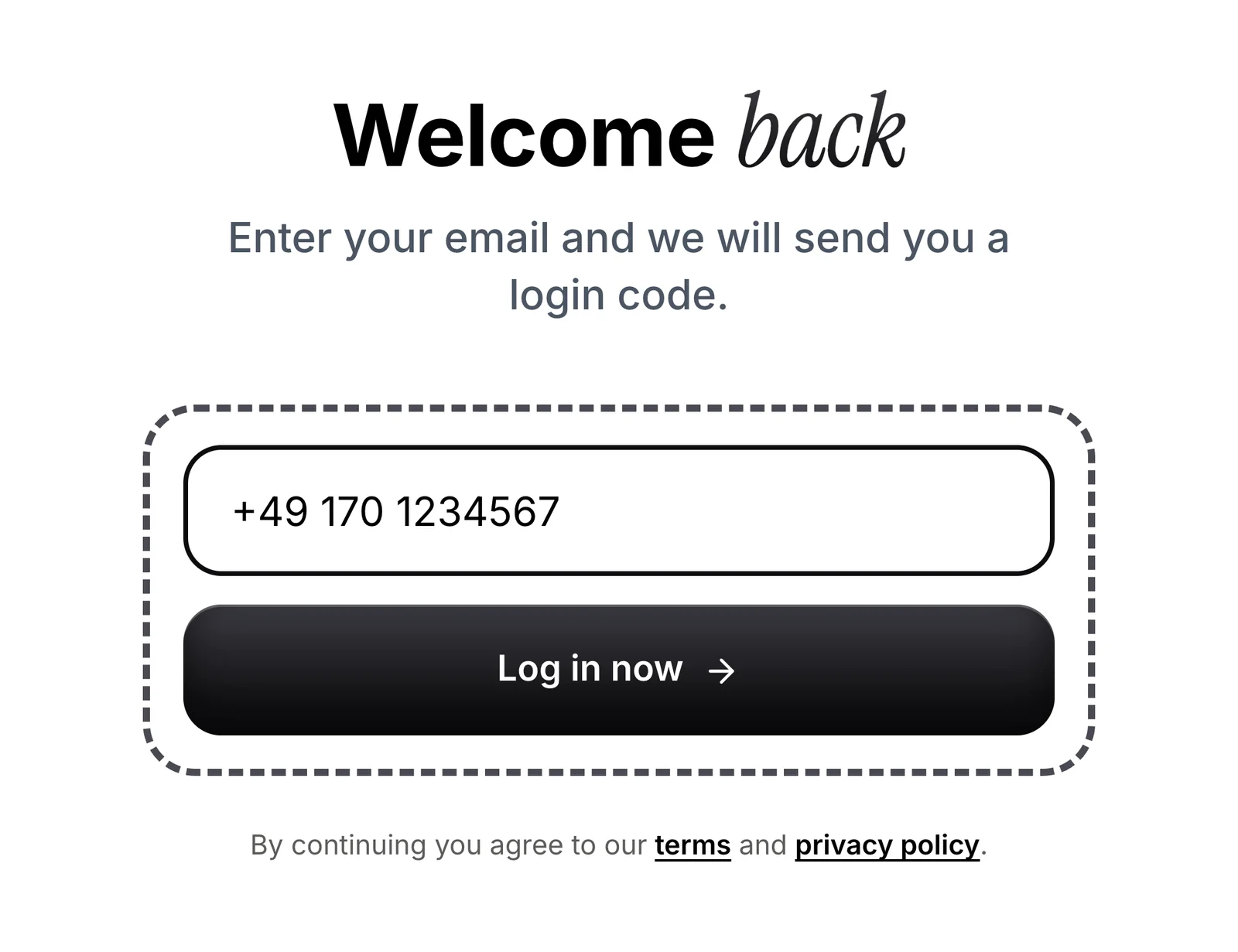
Enter your number instead of your email
You type your mobile number with the country code into the field Email or phone number and click Log in now.
- 2
The code arrives in WhatsApp
A few moments later, a 6-digit login code is in your WhatsApp. It appears as a notification, even when your phone is locked.
483920 is your verification code. For security reasons, you should not share this code.8:02Copy code - 3
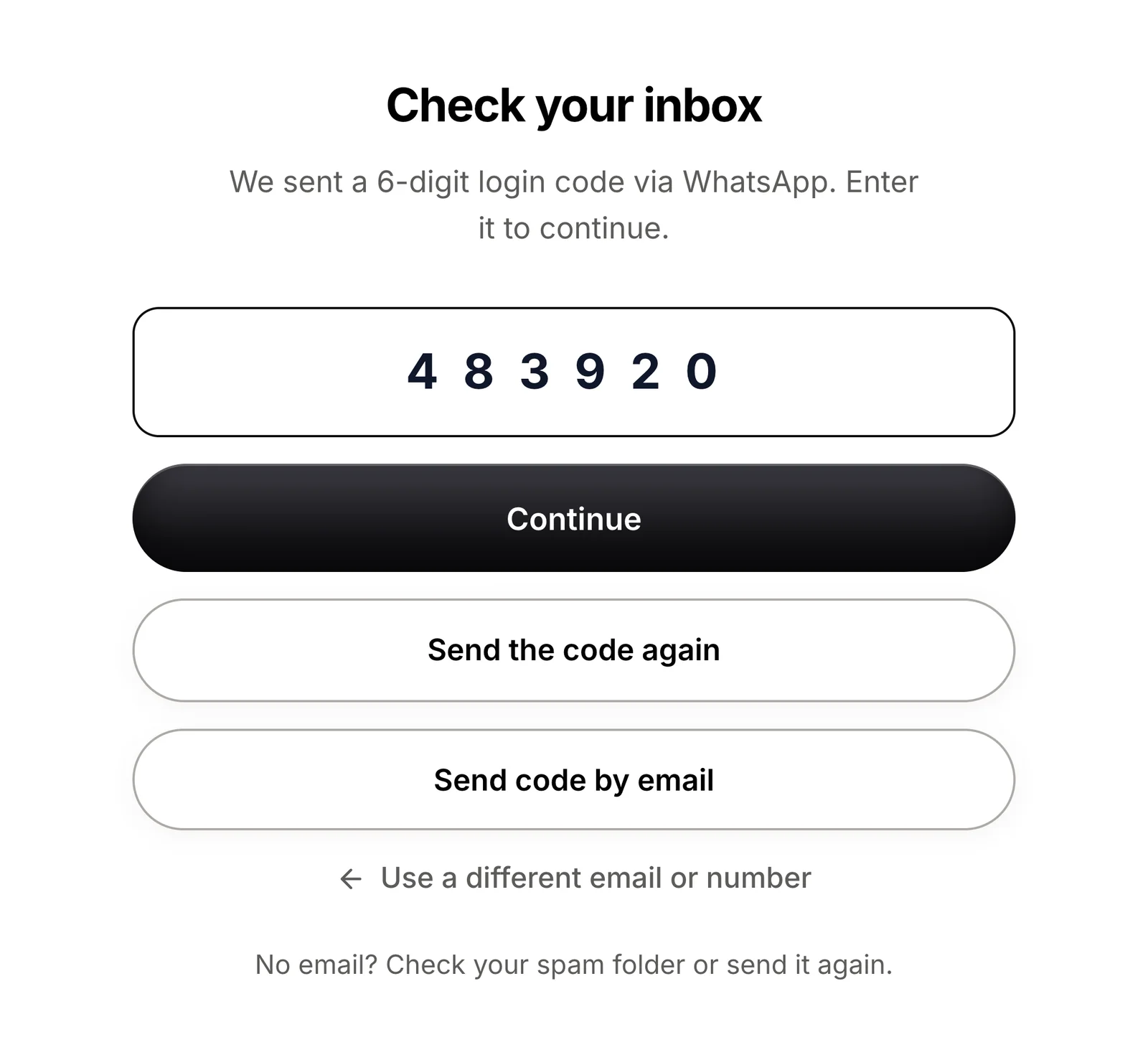
Enter the code and click Continue
Click Copy code, then paste the digits into the field. With Continue, your dashboard opens.
- 4
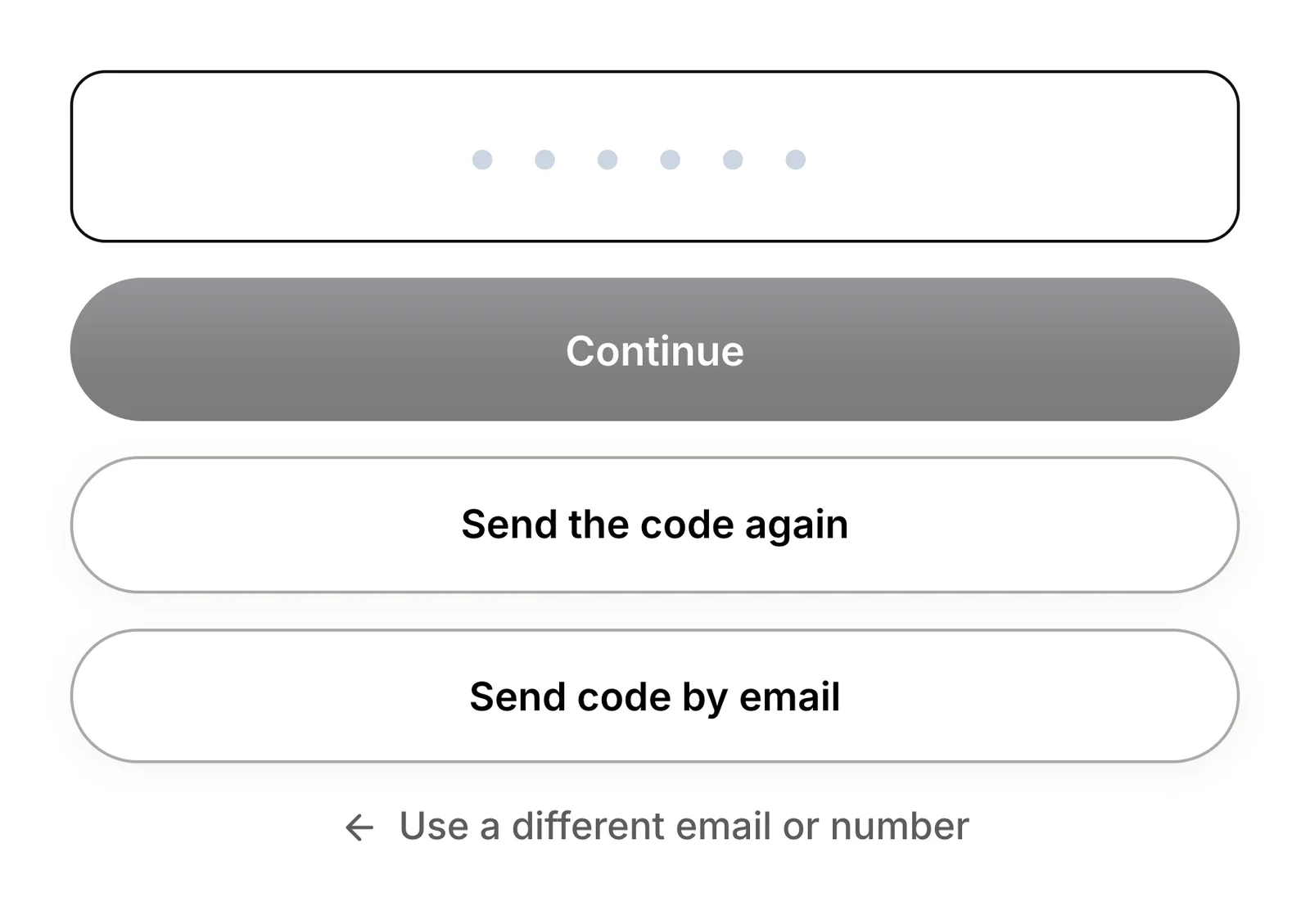
Prefer email? No problem
You can also request the verification code by email at any time.


How to set up the WhatsApp login .
All you need is your phone with WhatsApp. The whole process happens in one small window.
Open Security
In the settings, click Personal account and scroll to Security.
Personal accountEnter your number
In the Phone login card, click Activate and enter your number with the country code.
Send codeConfirm code
Enter the 6 digits from WhatsApp in the fields and click Confirm.
ConfirmDone
SmartChat tells you the WhatsApp login is activated. From now on you use your number or email, whichever suits you.
Turned on
Email or WhatsApp: you choose.
Both ways stay available. With the WhatsApp login, WhatsApp is simply added as a second way.
| Code by email | Code by WhatsApp | |
|---|---|---|
| Where the code arrives | In your email inbox | In WhatsApp |
| Length of the code | 6 digits | 6 digits |
| Set up beforehand | not needed | once under Security |
| Notification on the lock screen | no | yes |
If you switch the method on the login page, you get the same code. It doesn't matter how you last logged in.
Turn it off any time.
If you no longer want the login by WhatsApp, click Deactivate. Your login with email stays as usual.

What does the WhatsApp login cost?
Nothing extra. The WhatsApp login is included in every plan, including Free, and the code costs no credits. All prices excl. VAT.
| Free | Starter | Basic | Pro | |
|---|---|---|---|---|
| Price per month | 0 € | 299 € | 499 € | 999 € |
| WhatsApp Login | yes | yes | yes | yes |
| Login with code by email | yes | yes | yes | yes |
Frequently asked questions about WhatsApp Login.
What is the WhatsApp login from SmartChat?
With the WhatsApp login, you log in to SmartChat with your mobile number. You get the 6-digit login code by WhatsApp instead of by email. In the app, the feature is called Phone login.
Where do I turn on the WhatsApp login?
In the settings under Personal account, Security. In the Phone login card, click Activate, enter your number, click Send code, and confirm with the code from WhatsApp.
What does the WhatsApp login cost?
Nothing extra. The Phone login is included in every plan, including Free, and the code costs you no credits.
Do I pay fees to Meta for the code message?
No. SmartChat sends the code from its own WhatsApp number and covers the cost. Nothing is deducted from you.
How long is the code from WhatsApp valid?
A code is only valid for a short time. If it has expired, you request a new one on the login page.
What do I do if the code doesn't arrive in WhatsApp?
You can also request the verification code by email at any time. To do that, click Send code by email on the login page.
What happens if I enter the code wrong?
SmartChat shows you that the code is incorrect. Then you enter the code again or request a new one.
Can every team member log in with WhatsApp?
Yes. The WhatsApp login applies to each person individually. Every team member turns it on in their personal account with their own mobile number, whether in a Personal training or in a nutrition practice with several advisors.
Can I still log in with my email?
Yes. In the field Email or phone number, you enter whichever you like at the moment. The same code arrives either way.
Does my two-factor authentication stay active?
Yes. Two-factor authentication with an authenticator app is not affected by the WhatsApp login. You'll find both in the settings under Security.
How do I turn the WhatsApp login off again?
In the Phone login card, click Deactivate and confirm. Your number is removed, and you log in with your email only again.
Set up your WhatsApp login in 60 seconds.
Enter your website. SmartChat creates your WhatsApp marketing system, and you turn on the WhatsApp login afterwards in the settings.