Who on your team may do what.
In SmartChat, every person on your team gets the role Admin or Team member, and SmartChat checks with every action whether the role allows it.

SmartChat has two roles.
The admin sets up SmartChat and sends marketing messages. Staff only see the inbox and settings, and reply to incoming messages there.
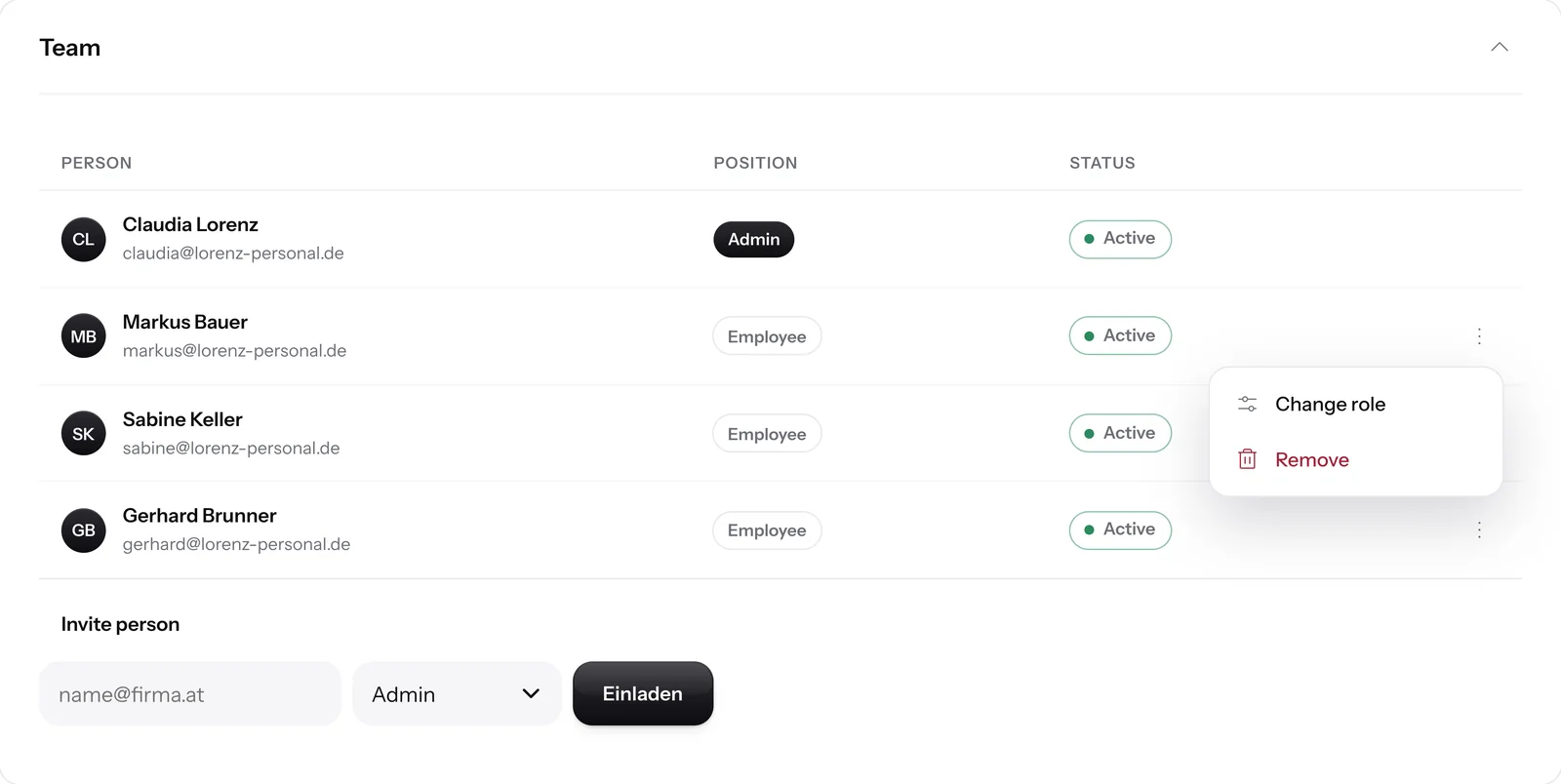
Admin
Sets up SmartChat, sends newsletters and follow-ups, manages contacts and invites your team. Using the three dots next to a person, they change that person's role or remove them.
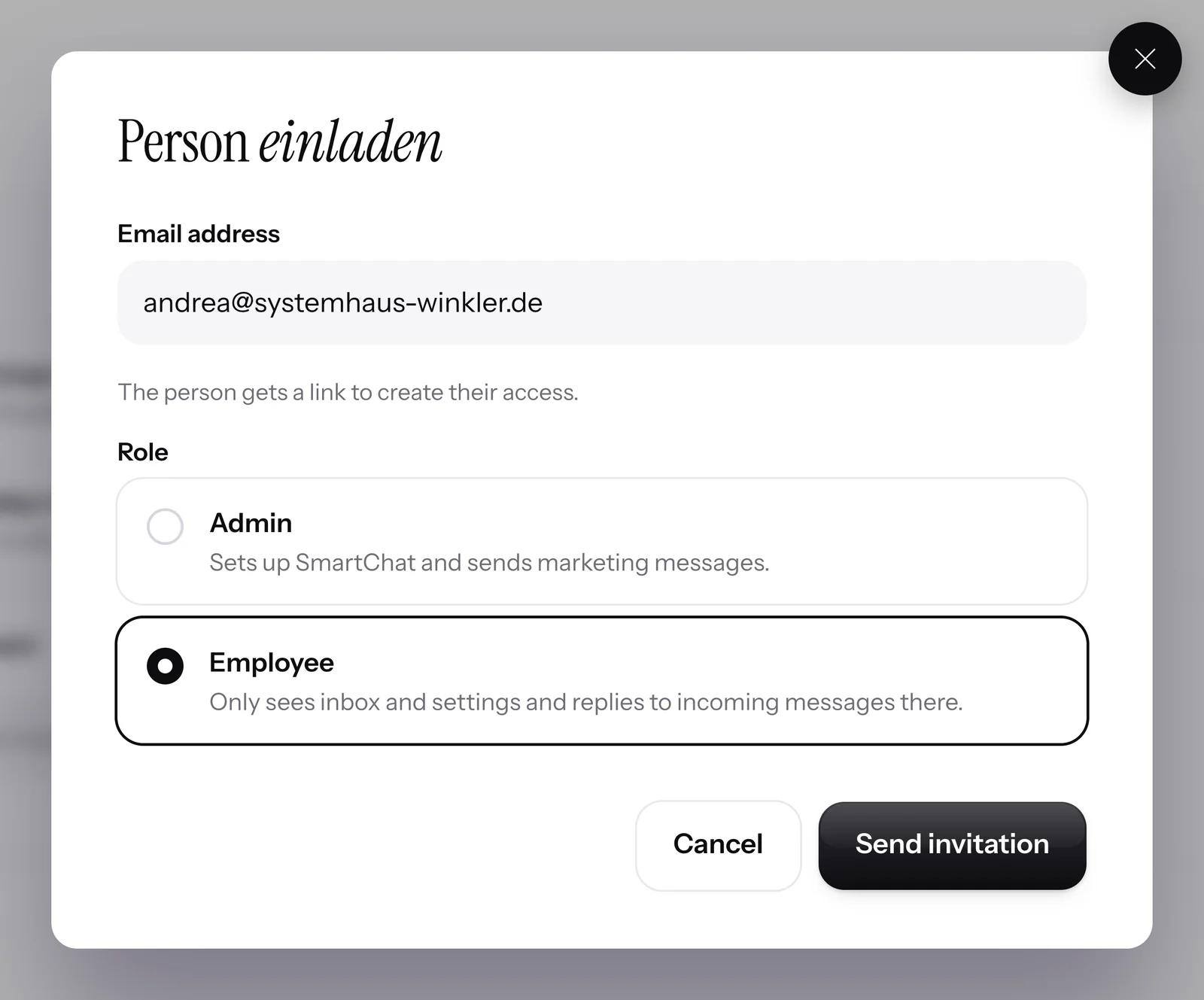
Team member
Answers WhatsApp messages in the inbox and only changes personal settings, for example two-factor and their own notifications.


Which role may do what.
The rights apply to each person individually. Whoever created the account is automatically an admin.
| Team member | Admin | |
|---|---|---|
| Read and answer conversations in the inbox | yes | yes |
| Set your own notifications and two-factor | yes | yes |
| View, export and delete contacts | no | yes |
| Download consent proofs | no | yes |
| Send newsletters, follow-ups and automations | no | yes |
| Edit landing page and website popup | no | yes |
| Invite team, change roles and remove members | no | yes |
| Manage API keys | no | yes |
| Book a bigger plan | no | yes |
Any admin can delete the business, cancel the subscription and switch to a smaller plan; a team member can't.
What every admin can also do.
Whoever creates an account is an admin. Only an admin can do three things; a team member can't.
- Deletethe business with all contacts, messages and landing pages.
- Cancelthe subscription, or undo a cancellation.
- Switchto a smaller plan.
Blocked right on the server.
Whatever a team member isn't allowed to do, SmartChat hides in the app and also blocks on the server, in one central place.
Action in the app
Someone on your team opens a section or clicks a button.
ClickCheck the role
With every request, SmartChat checks this person's role in the selected account.
Every requestAllowed
Admins work in all sections. Staff members get access to the inbox, their own notifications and their own login.
ApprovedRejected
SmartChat blocks everything else for staff members. If a role is unknown, staff member rights apply.
No access
A separate role in every account.
If you work in several accounts, the role you were given in each account applies there. Being an admin in one account doesn't make you an admin in another. Learn more under Multiple accounts.

Frequently asked questions about roles and permissions.
Which roles are there in SmartChat?
There are two roles: Admin and Employee. The admin sets up SmartChat and sends marketing messages. The employee only sees the inbox and settings and replies there to incoming messages. Whoever created the account is automatically the admin.
What can an employee do in SmartChat?
A team member only sees the inbox and settings and replies to incoming messages there. In the settings, they can only change personal things, for example two-factor and their own notifications.
What can an admin do in SmartChat?
An admin sets up SmartChat, sends newsletters and follow-ups, builds automations and the landing page, manages contacts and API keys and can book a bigger plan. They also invite your team, change roles and remove members.
What can only an admin do, and not a team member?
Any admin can delete the business, cancel the subscription or undo a cancellation, and switch to a smaller plan.
When does a new role take effect?
Right away. SmartChat checks the role again with every action; the person doesn't need to sign in again.
Can a team member open blocked areas through a direct link?
No. SmartChat blocks these areas on the server. Even with a direct link or a custom request, a team member can't get in.
Do I have the same role in every account?
No, the role applies per account. You can be an admin in one account and a staff member in another. Learn more under Separate data for each account.
How many people fit on my team?
Free has 1 seat, Starter 3, Basic 6 and Pro 12. Invitations that haven't been accepted yet count too. Learn more under Team.
Does everyone on the team share one login?
No. Everyone logs in with their own email address and their own code. That way you always know who has access to your account. Learn more under Login and two-factor.
What happens if I remove someone from the team?
The person loses access to your account right away. What they wrote in the inbox stays readable for your team.
Invite your team. Start in 60 seconds.
Enter your website. SmartChat AI analyzes your business and builds your WhatsApp marketing system in 60 seconds, for free.