Connect Google Meet to SmartChat.
Your call runs in Google Meet. SmartChat sends the reminder and follow-up by WhatsApp.


The online consultation, then and now.
Everything by hand
- You write to every client one by onewhat they should prepare.
- The Meet link sits in an emailthat gets opened too late.
- You only notice who didn't show up during the session
- Following up gets put offuntil nobody needs it anymore.
Google Meet with SmartChat
- The preparation is in WhatsApp the day before.
- The contact has everything in one place and asks less often
- Cancellations come before the call.
- Follow-up runs on your schedule by itself.
Three practices, three messages.
The call always runs in Google Meet. What happens before and after depends on the business.
The log before the first call saves questions.
An hour before, the reminder about mat and space gets noticed.
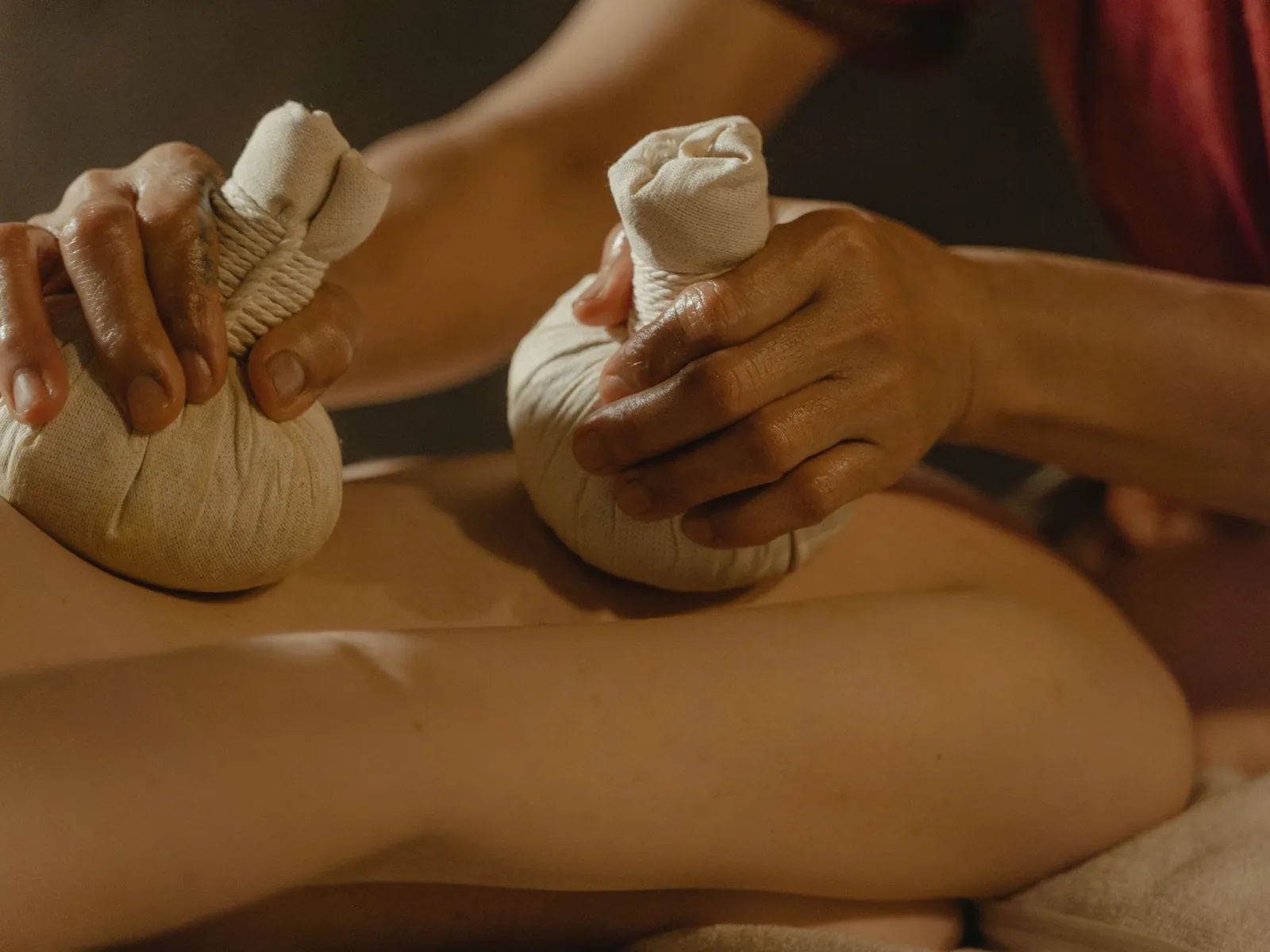
The practice stays in touch and offers the follow-up appointment.



Five things an automation does in Meet.
The connection's documentation lists these actions. SmartChat AI picks the right one for your goal.
- Create a new Meet room for every booking of an online consultation.
Create room
A new Meet room is created without needing a calendar entry.
- After each room is created, add my colleague as co-host.
Add co-hosts
A member can be added to the room, also as co-host.
- Set every new Meet room so that only invited people can join.
Change room settings
Access, moderation and artefacts of a room can be set.
- After the call, fetch the participants and send everyone who attended a thank-you message.
Retrieve attendees
For past calls, transcripts and participants can be read.
- After the call, check whether there's a recording and let the contact know by WhatsApp.
Fetch recording
Recordings of a call can be listed.
To your first flow in four steps.
You don't need any tech for this. You write in the AI Chat what should happen.
- 1
Name Meet
You write it in the AI Chat, SmartChat AI shows you the card with the button to connect.
I want to connect Google Meet. - 2
Sign in with Google
Google's sign-in window opens, you choose your account and allow access. You only enter your password at Google.
Sign in with Google;SmartChat doesn't see your password. - 3
Describe the flow
In plain sentences, just as you'd explain it to an employee.
Send every contact a reminder with the preparation the day before their online call. - 4
Check the flow
SmartChat AI shows what the automation does before it runs.
Before it starts, you see trigger and message.
The contact reads the preparation in good time.
No email inbox needed
The message is where the contact checks every day anyway.
As an approved template
Outside the inbox, SmartChat only sends templates that Meta has checked. SmartChat AI writes them for you.
Replies in the inbox
If the contact asks something, you see it in the inbox.
What happens after the call.
Google Meet provides transcripts and participants for past calls. An automation can use them to decide its next step.
The call ends
A tool like Make, Zapier or n8n can report that.
Google MeetThe event reaches SmartChat
It goes to the secret webhook address of your automation.
Webhook inboxParticipants are read
An action can fetch the participants of the call.
offerFollow-up by WhatsApp
Everyone who attended gets a thank-you and a follow-up appointment as an approved template.
WhatsApp
After the conversation, it keeps going.
A short message the same day shows that someone is staying on it. Your team reads the reply in the inbox.
Personal in tone
The message addresses the contact by name.
Follow-up appointment with one button
The button leads to booking a time.
Questions don't get left behind
If the contact replies, it shows up in the inbox.

Questions about Google Meet and SmartChat.
How do I connect Google Meet with SmartChat?
Write in the AI Chatthat you want to connect Google Meet. You get a card with the button to connect. In Google's sign-in window, you choose your account and allow access.
Does SmartChat get my Google password?
No. You only enter your password in Google's sign-in window.
Can SmartChat send Meet links by email?
No, SmartChat only sends WhatsApp. The room is created in Google Meet, and SmartChat sends the message to the contact.
Can an automation create a Meet room?
According to the docs, yes, a room can be created even without a calendar entry. Members can also be added and room settings changed.
Can I see afterwards who took part?
The docs list actions for past calls: transcripts, participants and recordings can be listed.
Are calls recorded automatically?
You decide that in Google Meet. SmartChat can only fetch existing recordings if there are any.
Are there triggers directly from Google Meet?
The connection's docs don't list any. You report events through the secret webhook address, if needed with Make, Zapier or n8n. Triggers from SmartChat are always available.
When does SmartChat send the reminder before the call?
At the time you describe in the automation. That can be a day or an hour before, whatever suits your business.
What happens if the contact has no phone number saved?
Without a number, SmartChat can't send a WhatsApp and skips the step.
Can everyone on the team build automations?
No, only admins can, because only they use SmartChat AI for it.
How many automations can I use?
Free: 1. Starter: 1. Basic: 3, one of them fixed. Pro: unlimited. An automation with Google Meet is one of the additional ones.
What does sending cost?
For sending and runs, you pay 0 credits in SmartChat. Meta's fees are listed here, the plans on the pricing page.
Do my messages need to be approved?
Outside the inbox, yes: they are templates that Meta has checked and approved. SmartChat AI writes them and submits them.
And if someone doesn't want messages anymore?
They write STOP and are unsubscribed right away, after that they get neither newsletters nor automations.
Calls that keep working. In 60 seconds your system is ready.
Enter your website, and SmartChat AI builds the landing page, confirmation and thank-you message. Then you connect Google Meet in the AI Chat.