Import contacts in SmartChat.
You upload your customer list. Your contacts receive your newsletter as soon as they have confirmed.

Your customer list becomes a mailing list.
Are your customers already in a spreadsheet? SmartChat turns it into contacts you are allowed to message on WhatsApp, with a status and proof for each one.
The list in a spreadsheet
- Numbers from your till, web shop and card file are scattered across different files
- Nobody knows who wants to get news on WhatsApp
- Duplicate and outdated numbers are all over the place
- Someone who opted out once is still on the list
The list in SmartChat
- Every contact has a status: Confirmed, Unconfirmed or Unsubscribed
- Only contacts who have confirmed receive your newsletter
- Every number appears exactly once in your contacts
- Anyone who has written STOP stays unsubscribed
Four steps to your finished list.
The import runs in a single window in your contacts. You click Import contacts and go through the steps in order.
Choose a file
Drag your file into the window or select it. SmartChat immediately shows you how many rows and columns it has.
Your fileMap columns
You tell SmartChat where the first name, phone number and, if you like, the tag are. Below that you see the first three rows.
First name, number, tagChoose consent
Later, Send confirmation message or Provide proof. This is how you decide how your contacts give their consent.
3 waysImport
Your new contacts then appear at the very top of your contact list.
New first
Take the fileyou already have.
Whether it is an export from your till, from your web shop or your own spreadsheet: SmartChat handles the common formats, with comma or semicolon and with umlauts.

Excel, CSV and Numbers
Plus TXT and OpenDocument (.ods). If a Numbers file does not work, export it from Numbers as Excel or CSV.
The right sheet
If your Excel file has several sheets, SmartChat takes the sheet with the phone numbers.
Long lists too
You import your whole list.
You show SmartChat where the first name is.
SmartChat suggests the mapping based on your column names. You check it quickly and immediately see how your contact will be addressed later.

Suggestion is already set
If a column is called Vorname, Handy or Telefon, SmartChat maps it automatically. You only change what does not fit.
Tags only if you want them
You choose the column for tags yourself. SmartChat never assigns them automatically.
Only what WhatsApp needs
SmartChat takes over first name, phone number and tag. Last names and all other columns are not imported.
You choose how your contacts give consent.
A number in your list is not yet consent to WhatsApp marketing. That is why SmartChat asks with every import how to proceed.

Later
You import first and send the confirmation message afterwards in your contacts to everyone you select.
Send confirmation message
For this you need a connected WhatsApp number. Before sending, SmartChat asks once more.
Provide proof
For lists with written consent, for example from sign-up cards. You enter the type, date, source and a description.
This is how the confirmation message arrives.
If you choose Send confirmation message during the import, every new contact receives a confirmation message on WhatsApp from your number. Only after they click Confirm can you send them newsletters and follow-ups.
Even long lists arrive in full
With long lists, SmartChat sends as many confirmations per day as Meta allows for your number.
Only after approval
The confirmation message is a template that Meta reviews beforehand. SmartChat submits it for you and sends it as soon as it is approved.
One click is enough
Your contact does not have to write anything. After confirming, they receive your WhatsApp newsletter.


Your list is automatically cleaned.
SmartChat sorts out duplicate, wrong and unsubscribed numbers before a contact is created. After the import, a message shows you what happened.

Area code added
If a number is missing the country code, SmartChat adds it. Numbers that cannot be recognized at all are left out.
Message in the bell
If your file has rows without a valid number, SmartChat reports this in the bell, with the number of rows.
Then you can write to all confirmed contacts.
As soon as your contacts have confirmed, you send them newsletters, to everyone or only to contacts with a certain tag from your file.
To all confirmed contacts, as soon as the new collection has arrived.
Only to contacts with the tag gleitsicht from your import file.
Sent automatically at the time you choose, with date and time.
In good time before the cold season, to everyone who has confirmed.

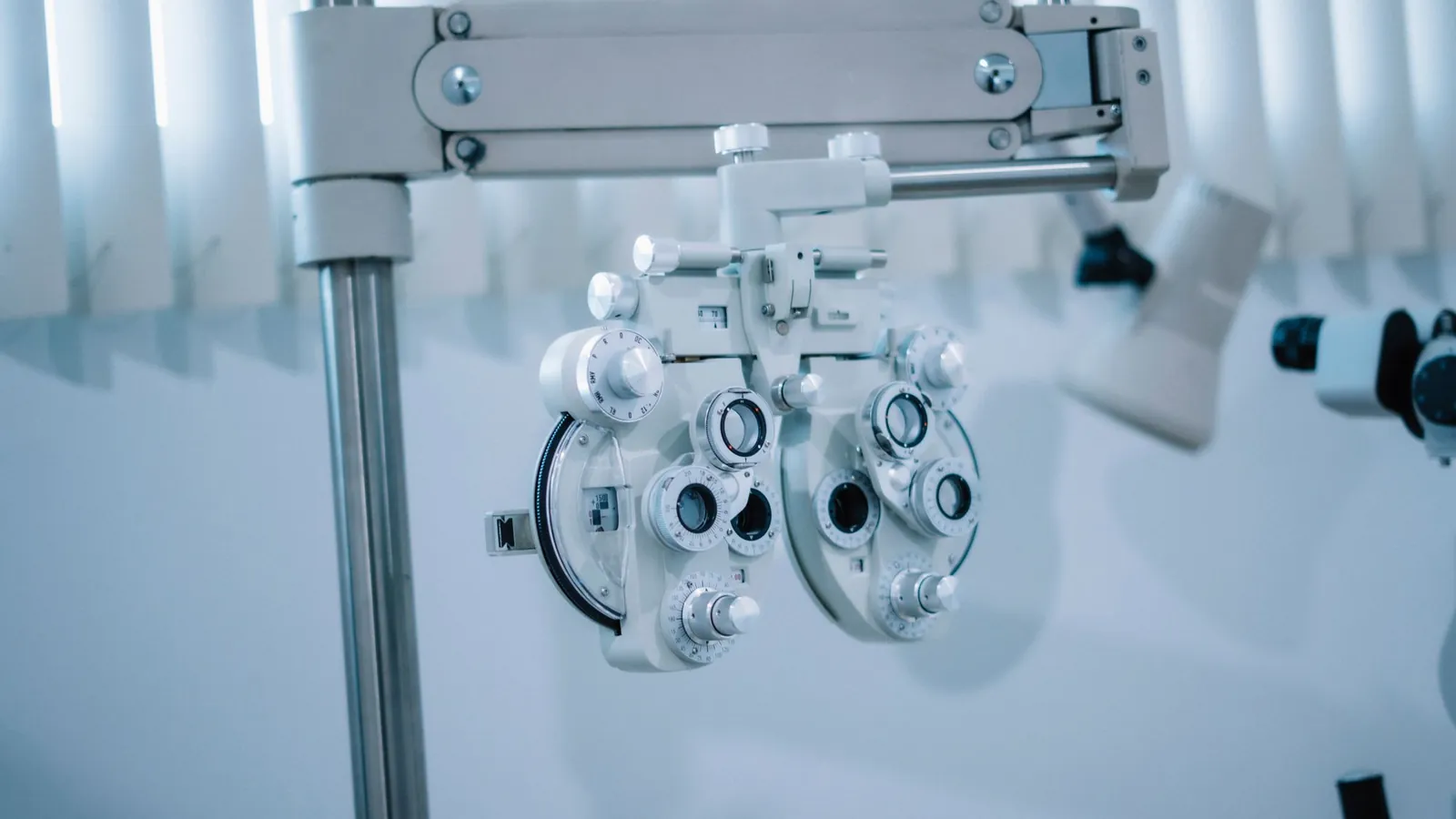


The import is included in every plan.
You can import contacts in all plans, including Free. How many contacts you have is never limited. All prices plus VAT.
| Free | Starter | Basic | Pro | |
|---|---|---|---|---|
| Price per month | 0 € | 299 € | 499 € | 999 € |
| Contacts | unlimited | unlimited | unlimited | unlimited |
| Import contacts | yes | yes | yes | yes |
| Confirmation message after the import | yes | yes | yes | yes |
| Proof during the import | yes | yes | yes | yes |
| Messages | 100 one-time | 3,000 per month | 6,000 per month | unlimited |
Frequently asked questions about the contact import.
Which files can I import into SmartChat?
SmartChat handles CSV, TXT, Excel (.xlsx and .xls), OpenDocument (.ods) and Apple Numbers.
Which columns does my file need?
You need a column with the first name and one with the phone number, ideally with the country code like +49 or +43. A column for tags is optional. The first row holds the column names, with your contacts below.
May I send imported contacts a newsletter right away?
No, only once they have agreed. If you choose "Send confirmation message" during the import, every new contact first gets a confirmation message via WhatsApp. They receive your newsletter as soon as they click "Confirm".
What happens with duplicate numbers in my list?
SmartChat creates every number only once. If it appears twice in the file or the contact already exists, SmartChat counts it as already existing and doesn't create a second contact.
What happens with numbers without a country code or with typos?
If the country code is missing, SmartChat adds it. Numbers that can't be recognized are not imported by SmartChat, and it reports the number of these rows in the bell. You correct them in your file and upload it again.
What about contacts who unsubscribed earlier with STOP?
They stay unsubscribed, even if their number is in your file. SmartChat creates them as unsubscribed, and they receive no messages from you.
My list has a "confirmed" column. Does SmartChat take that over?
No, an entry in your file is not proof. Send these contacts the confirmation message, or choose "Provide proof" during the import and enter the type, date, source and description of the consent. How an insurance broker works with signed consents is shown in WhatsApp marketing for insurance brokers.
How long does it take until everyone has the confirmation message?
SmartChat sends as many confirmation messages per day as Meta allows for your WhatsApp number. For long lists, sending is therefore automatically spread over several days.
Can I send the confirmation message later?
Yes. With "Later", your contacts go into the list as Unconfirmed and nothing is sent. Later you select them in your contacts and click "Send confirmation message".
Can I assign tags during the import?
Yes, if your file has a column for it. In the Map columns step, you assign it to the Tag field, and every contact gets the tag from their row. A furniture store, for example, invites only contacts with the tag schlafen to its sleep days, and an optician invites only contacts with the tag gleitsicht to its progressive lens day. Learn more under WhatsApp marketing for furniture stores and WhatsApp marketing for opticians.
How much does importing contacts cost?
The import costs no credits, no matter how many contacts your file has. You only pay for your plan: Free €0, Starter €299, Basic €499 and Pro €999 per month, all prices plus VAT. For your WhatsApp messages, Meta's fees come on top, which you pay directly to Meta. You can find the current Meta fees under Meta fees.
How much does WhatsApp charge at Meta for the confirmation messages?
Meta charges the fees for WhatsApp messages directly to you. For that, you add a payment method in your Meta account. SmartChat adds nothing on top. With SmartChat, you only pay for your plan. You'll find the current Meta fees under Meta fees.
How many contacts can I import in total?
As many as you want, because contacts are unlimited in every plan, including Free.
Can I export my contacts again later?
Yes, you select contacts in your list and click Export. The CSV file contains all contacts with their status and tags.
Import all contacts in 60 seconds
Enter your website and SmartChat AI analyzes it. In 60 seconds, your WhatsApp marketing is ready to go, then you upload your customer list.