Connect Microsoft Teams to SmartChat.
Participants learn about the Teams meeting via WhatsApp. Your team sees in Teams when someone replies.


When meetings need announcements.
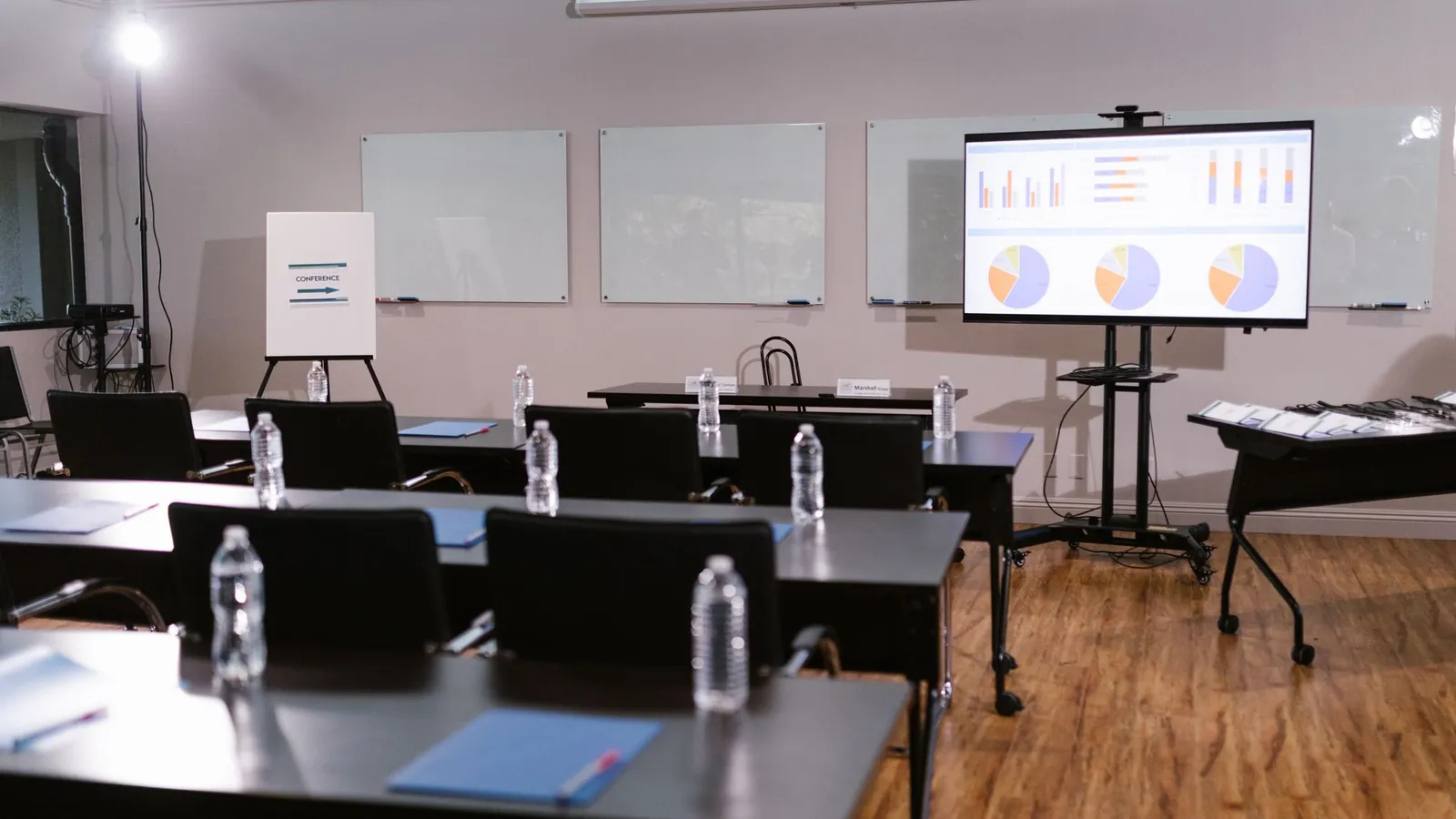
Whether it's a seminar, a franchise round or a client meeting: the meeting runs in Teams, and the announcement reaches the contact in WhatsApp.
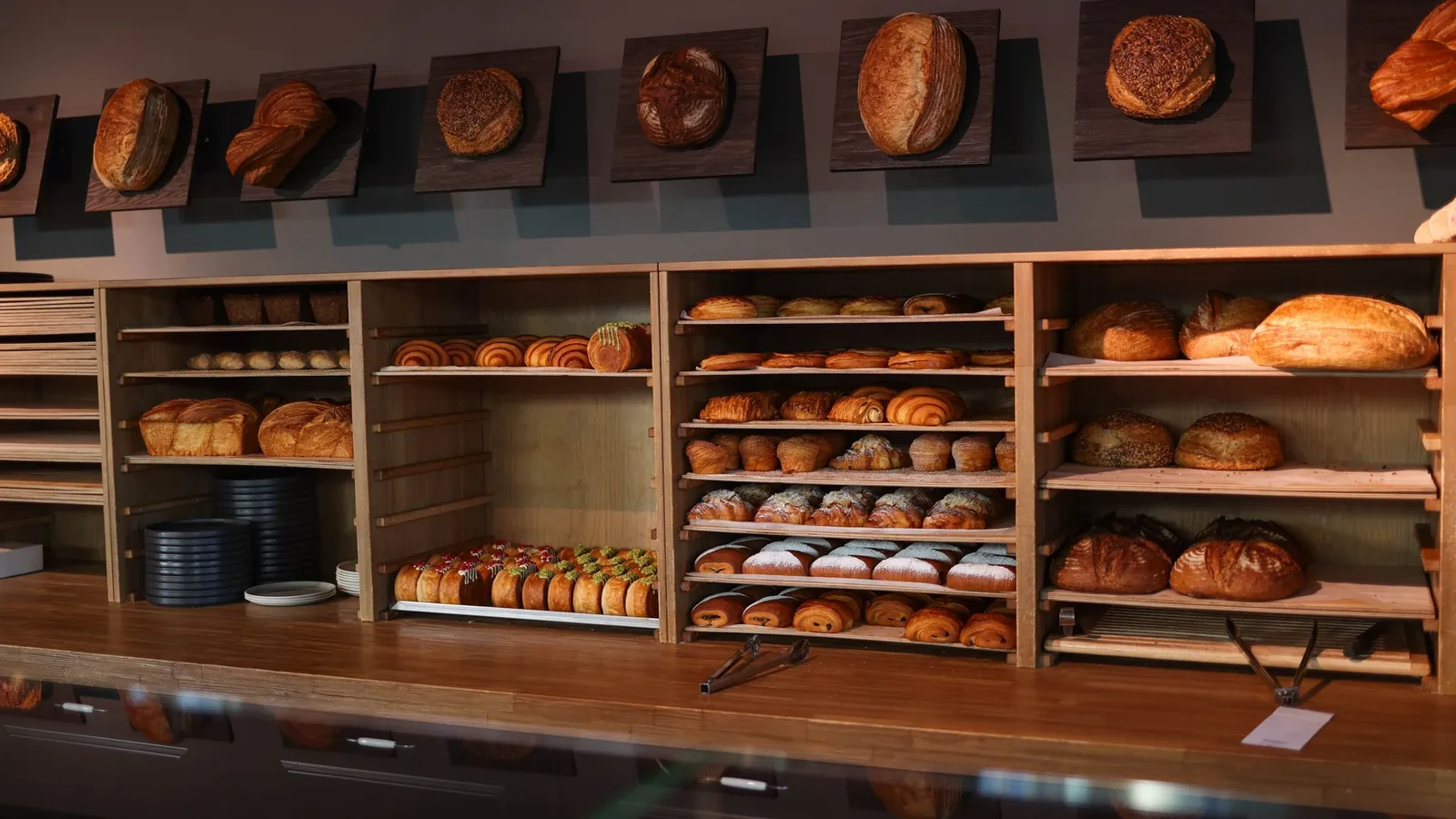
A short meeting before the shop opens needs a clear announcement.
The confirmation says what the client should bring.
Slides, homework and the next evening in one message.


When a contact replies, your team finds out.
Replies arrive in the inbox. An automation can also post a message in a Teams channel so nobody misses anything.
The contact replies
They write back in WhatsApp, for example with a question.
WhatsAppThe trigger fires
The trigger Contact sends a message starts the automation, only for a keyword if you like.
SmartChatTeams gets an alert
The action posts a message in a channel or writes to a colleague in chat.
Microsoft TeamsThe team replies
A team member replies to the contact in the inbox.
inbox
Connect Teams and define the flow
You describe what you want, and SmartChat AI builds the automation from it. You don't need any technical knowledge.
- 1
Mention Teams
Write it in the AI Chat, and SmartChat AI shows you a card with the button to connect.
Please connect Microsoft Teams. - 2
Sign in to Microsoft
The Microsoft sign-in window opens. You choose your account and allow access – you only enter your password there.
Sign in with Microsoft;not with SmartChat. - 3
Describe the alert for the team
You say who should be informed and when.
Post an alert in the Teams channel Customer Service as soon as a contact replies in WhatsApp. - 4
Approve the flow
SmartChat AI shows you the automation before it starts. Changes can be undone.
Trigger, Teams action and message are ready for review
Six actions that an automation runs in Teams.
The connection's documentation lists these actions among many others. SmartChat AI picks them based on your goal.
- Create a Teams meeting at the start time for every seminar registration.
Create a meeting
An online meeting is set up without a manual invitation.
- Post a message in the Sales channel as soon as a new contact signs up through the landing page.
Post in a channel
A new message appears in your team's channel.
- Reply in the channel to the alert about the contact as soon as their opt-in status changes.
Reply to a channel message
The reply is attached to the original post.
- Message the store manager in Teams when a new contact comes in through the QR code.
Write in chat
A colleague gets a message in a Teams chat.
- Notify the course leader in Teams when a participant cancels.
Report activity
An activity notification reaches the people you chose.
- After the seminar, check whether a recording is available and let the participants know in WhatsApp.
Check recordings
You can list the recordings of an online meeting.
The training for the store.
A staff member with little time needs the date, length and preparation at a glance.
Time and length
Start time and length are at the top of the message.
The team stays in the loop
When someone replies, the automation can report it in Teams.
Reply in the inbox
You'll see the reply in the inbox.
The announcement is ready before the shift starts
Visible right away
The notification shows the business and the start of the message before the app is even open.
Approved by Meta
Outside the inbox, SmartChat sends templates that Meta has reviewed. SmartChat AI writes them and submits them.
Timing to suit your plan
You describe in the automation when the message goes out.
One meeting, two worlds.
Teams only
- The invitation gets lost in the inbox
- External guests forget the appointment.
- Replies to questions are only seen by the person who receives them.
- After the meeting, the contact is forgotten.
Teams with SmartChat
- The announcement arrives in WhatsApp.
- A reminder helps against forgetting.
- Your team hears about replies in the channel.
- Follow-ups run to your plan.
What you want to know about Microsoft Teams and SmartChat .
How do I connect Microsoft Teams with SmartChat?
Write in the AI Chatthat you want to connect Microsoft Teams. The card with the button appears, then the Microsoft sign-in window opens. You choose your account and allow access.
Does SmartChat see my Microsoft password?
No, you only enter your password in the Microsoft window.
Does SmartChat send messages to my contacts in Teams?
No. SmartChat reaches contacts only in WhatsApp. Messages in Teams channels or chats go to your team, as an action of the connection.
Can an automation create a Teams meeting?
The connection's docs list actions for online meetings, for example creating a standalone meeting.
Can my team be told about replies in Teams?
Yes. The trigger Contact sends a message starts the automation, which can post a message in a channel or write to a colleague in chat.
Can I have a reply posted to an alert in the channel?
Yes, according to the docs there is an action to reply to an existing channel message.
How does SmartChat find out about events in Teams?
Through your automation's secret webhook address. The app sends the event directly if it supports webhooks; otherwise Make, Zapier or n8n pass it on.
Are there recordings and transcripts?
The docs list actions to list the recordings and transcripts of an online meeting. Whether there are any depends on your settings in Teams.
How many actions are there in total?
The connection's list of actions is large and, besides meetings and messages, includes files and shift schedules, among other things. Here we only show what makes sense for appointments and meetings.
Who can create the automation?
Only admins, because only they use SmartChat AI for automations.
How many automations are included in my plan?
Free has 1, Starter 1 (in each case the fixed one for new contacts), Basic 3 including one fixed, Pro unlimited. An automation with Teams counts as an extra one.
What does each message cost?
Why can't every message be written freely?
Outside the inbox, SmartChat only sends templates that Meta has reviewed and approved. SmartChat AI writes the template and submits it.
What does STOP mean for my participants?
Anyone who writes STOP is unsubscribed right away. They no longer get newsletters or automations.
Meetings nobody forgets. In 60 seconds your system is ready.
Enter your website, and SmartChat AI builds the landing page, confirmation message and thank-you message. Then you connect Microsoft Teams in the AI Chat.