Connect Cal.com to SmartChat
Bookings from Cal.com trigger a WhatsApp message. You describe the flow in plain sentences in the AI Chat.

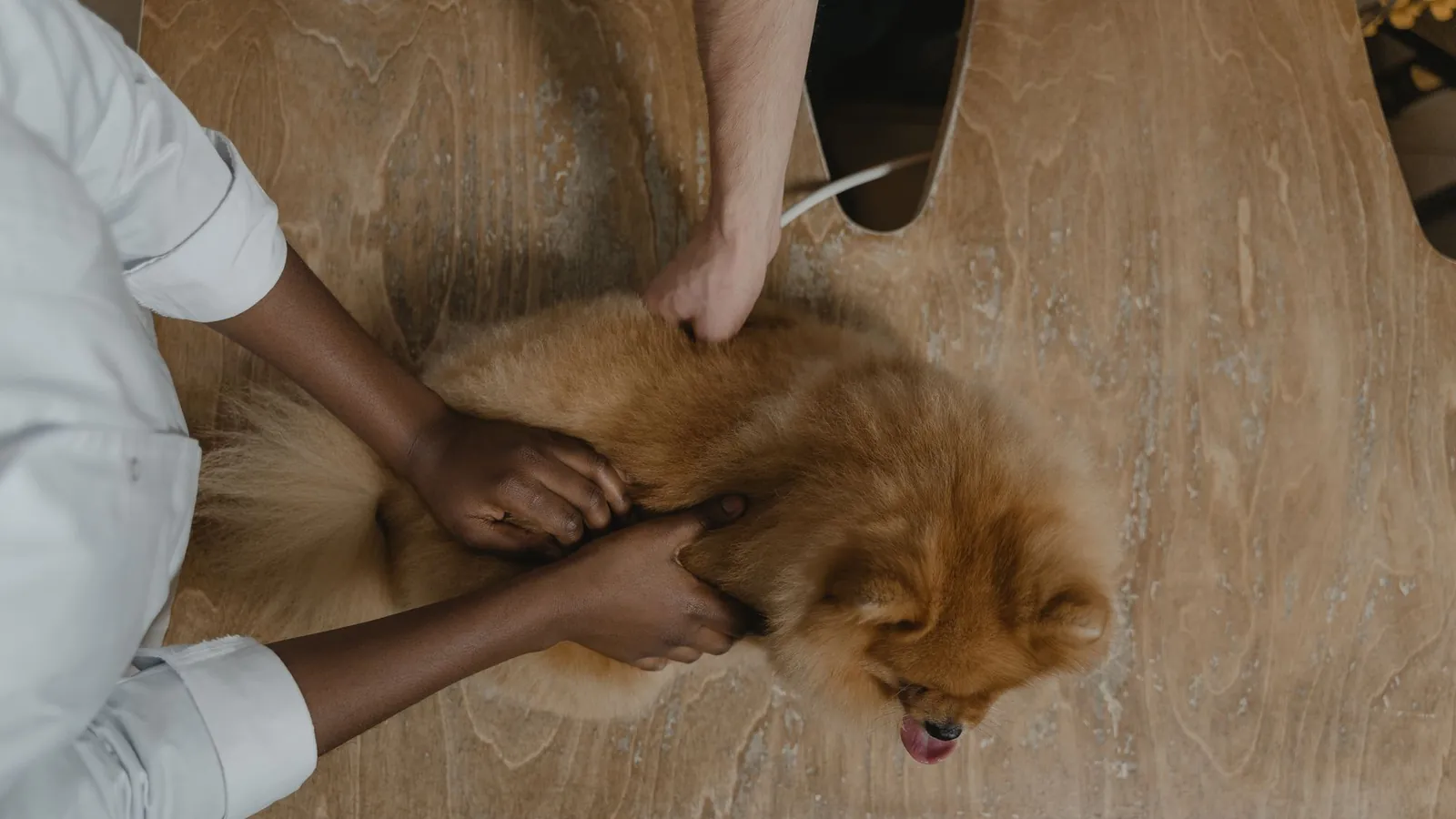
Every industry needs its own message.
Cal.com delivers the appointment, you set the tone. Three examples show what a booking can become.
Right after booking, the dog owner knows what to bring.
The day before, clothing, duration and parking are in the message.
One day later the practice checks in and offers the follow-up.

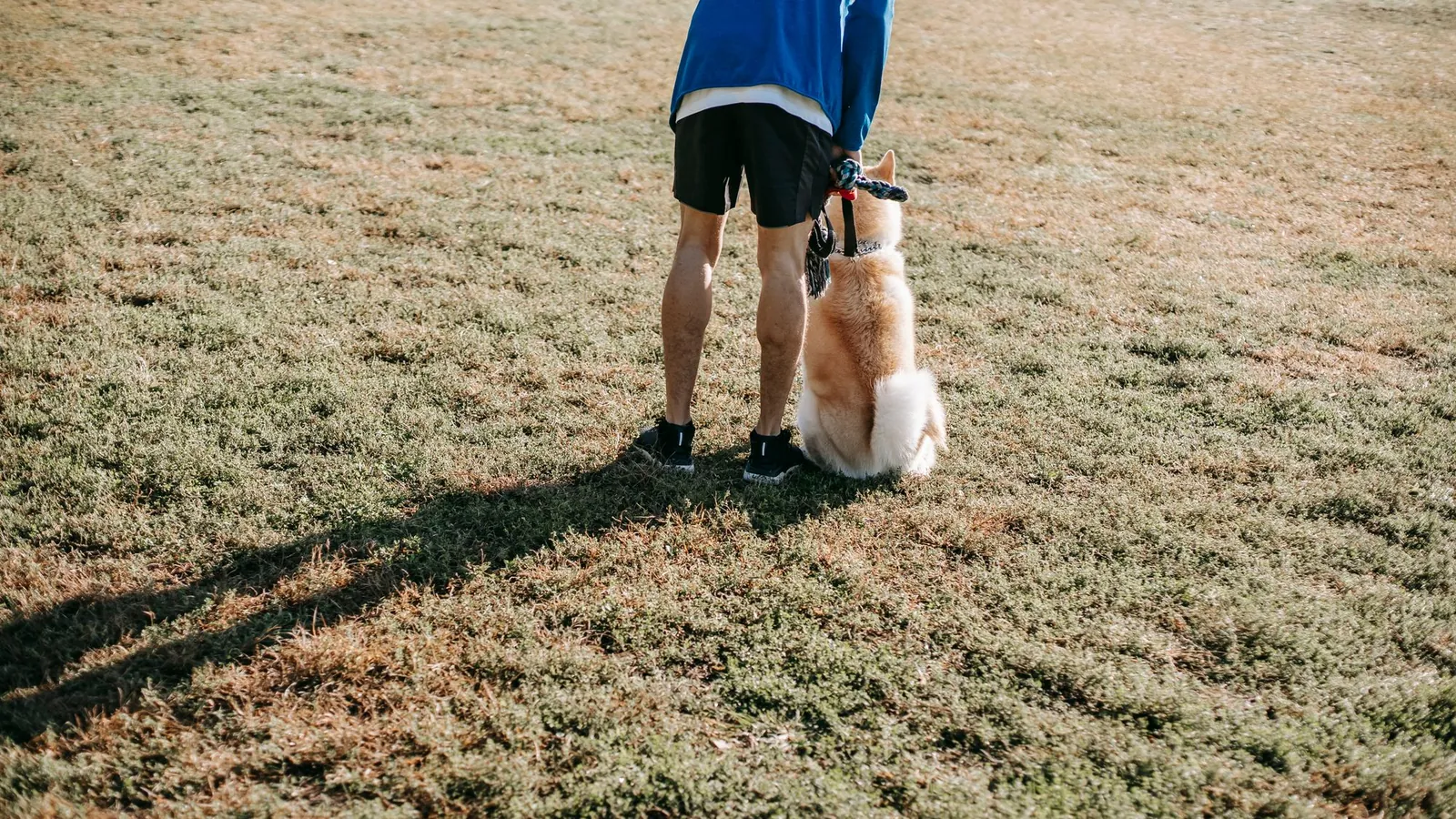

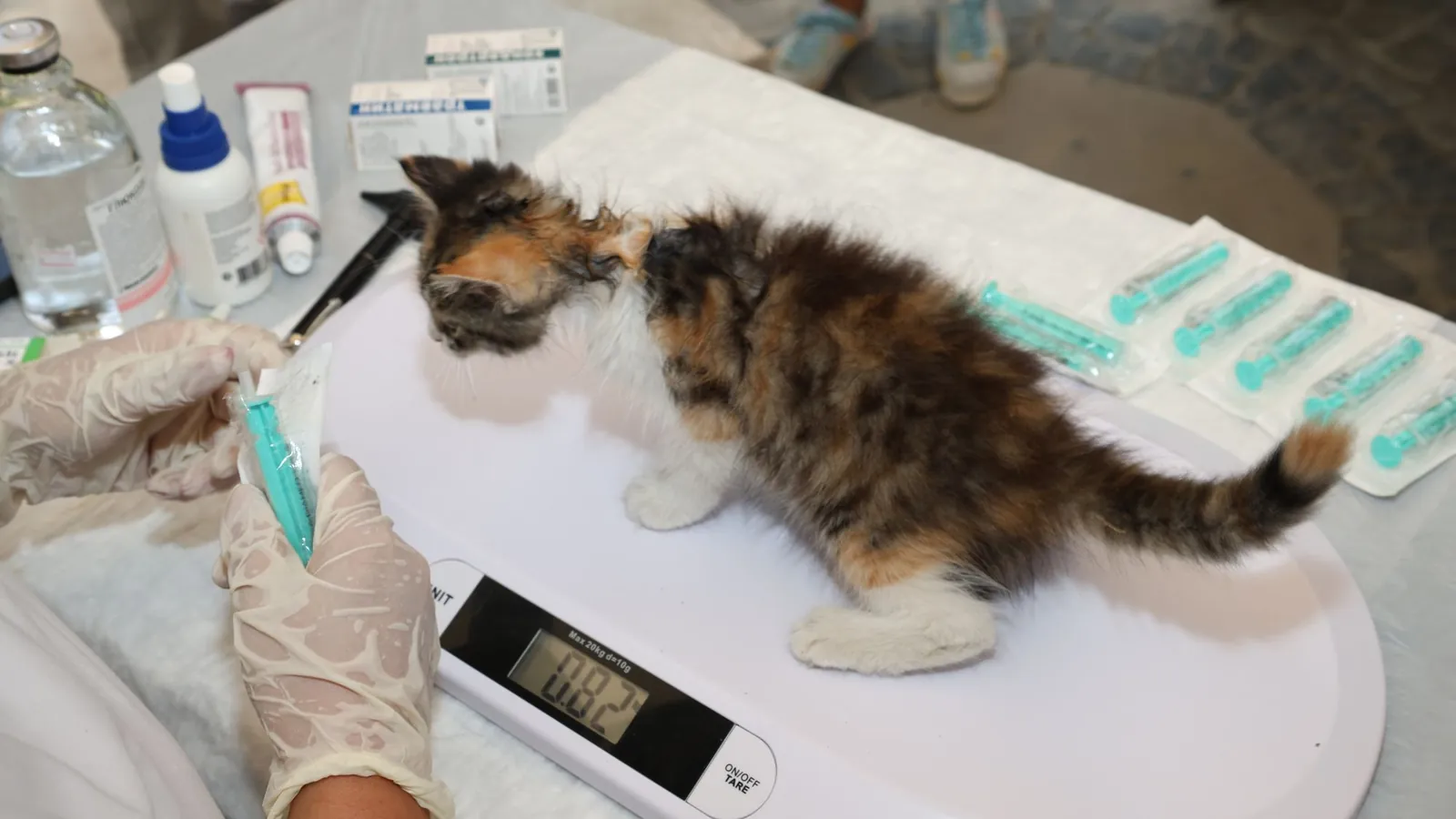
How Cal.com reports the booking to SmartChat.
Two things are needed: the connection to Cal.com and a webhook address that the event is sent to.
- 1
Request connection
You write it in the AI Chat, and SmartChat AI shows you the card with the button.
Please connect my Cal.com account. - 2
Allow access
The Cal.com login window opens. You choose your account and confirm access.
You enter the password only at Cal.com. - 3
Enter webhook address
Every automation with the trigger Event from an app has its own secret address. Enter it in Cal.com as a webhook, where you can create webhooks for events.
The address is secret, so don't share it. - 4
Describe the goal
Then you name the goal, SmartChat AI builds the automation and shows it to you for review.
Send every contact a confirmation with date and time after a booking in Cal.com.
When a booking has to be confirmed first.
In Cal.com, an appointment can wait for your approval. There are actions for this too, which an automation can run.
Request comes in
Your contact picks a time and waits for your approval.
Cal.comEvent is reported
The request goes to your webhook address, through Make, Zapier or n8n if needed.
Webhook inboxApproval or decline
An automation can confirm the booking or decline it with a reason.
Action in Cal.comReply in WhatsApp
The contact reads the result in WhatsApp, as a template approved by Meta.
WhatsApp
On the lock screen read first.
The notification stands out
Your contact sees the business name and the start of the message before they even open the app.
Approved by Meta
Messages outside the inbox only go out as a reviewed template. SmartChat AI writes it and submits it.
Follow-up questions in the inbox
If your contact asks a follow-up question, you answer in the inbox.
Six actions an automation can run in Cal.com
These actions are listed in the connection's documentation. SmartChat AI picks the right one based on the goal you name.
- Confirm every booking for the puppy group in Cal.com as soon as the contact has signed up through the landing page.
Confirm booking
An appointment waiting for approval gets released.
- Decline requests for Sundays in Cal.com with a reason and send the contact a WhatsApp message with alternatives.
Decline with reason
A request can be turned down with a justification.
- Reschedule the appointment in Cal.com when a contact writes the keyword Reschedule.
Reschedule appointment
An existing booking gets a new start.
- Add a second attendee to the booking as soon as the contact has a note with the word companion.
Add attendee
Another person joins a booking.
- Check next week's free times as soon as a new contact signs up.
Fetch free times
Cal.com lists the available time slots in a period.
- Mark the guest as absent if the dog school adds a note with the words No show in the evening.
Mark as absent
Whoever didn't show up can be noted in the booking.
The trial lesson gets confirmed.
Whoever asks doesn't like to wait. The confirmation arrives in WhatsApp, and the contact's reply lands in the inbox.
Clear confirmation
Day, time and place are in one message.
Personal greeting
Every contact is greeted by their first name.
Reply visible
The team reads the response in the inbox and can react right away.
Everyday life before and after.
Appointments by hand
- You send every confirmation individually by phone or on a slip of paper.
- Anyone who doesn't see the confirmation email,shows up at the wrong time.
- The day before, nobody reminds them what to bring.
- Check-ups after a treatment depend on your memory.
Cal.com and SmartChat
- Confirmation and reminder come automatically on WhatsApp.
- The contact learns the place and what to bring without asking.
- Approvals and declines run as an action in Cal.com.
- You see every reply in the inbox.
Everything important about Cal.com and SmartChat.
How do I get Cal.com into SmartChat?
Write in the AI Chatthat you want to connect Cal.com. You get a card with the button to connect. Then the Cal.com login window opens, where you choose your account and allow access.
Does SmartChat see my Cal.com password?
No. You enter the password only in the Cal.com window.
How does a booking get to SmartChat?
Through the webhook inbox. Every automation with the trigger Event from an app has a secret address that you enter in Cal.com as a webhook. If that doesn't work directly, Make, Zapier or n8n can help.
Can Cal.com send a webhook event for just one appointment type?
According to the docs, a webhook can be tied to an event type. In addition, a filter in the automation can check fields of the event, for example a name.
Which details from the booking appear in the message?
Everything the event delivers can be used in the message. Some programs only send IDs instead of values, in which case Make, Zapier or n8n fetches the values.
What happens if the phone number is missing?
Then SmartChat can't send a WhatsApp message and skips that step. So ask for the number in your booking form.
Can I have bookings confirmed or declined?
Yes, those actions exist in Cal.com. You describe the goal in the AI Chat, and SmartChat AI shows you the automation before it starts.
Can my team change automations without admin rights?
No. Only admins work on automations and the landing page with SmartChat AI.
How many automations come with my plan?
Free and Starter each include the one fixed automation for new contacts. Basic offers three, one of them fixed, Pro as many as you want. The automation with Cal.com is an additional one.
How much does sending cost?
Why does Meta have to approve the message?
Everything outside the inbox is sent by SmartChat as a template that Meta reviews. SmartChat AI writes it and submits it for you.
How do contacts unsubscribe?
With STOP. After that they are unsubscribed right away and receive no more newsletters and no more automations.
Is there an official partnership with Cal.com?
No. Cal.com is a trademark of its owner, and there is no official partnership between SmartChat and Cal.com.
Your calendar works, and so do you. In 60 seconds your system is ready.
Enter your website, and SmartChat AI builds your landing page, confirmation message and thank-you message. After that you connect Cal.com in the AI Chat.